Retopology · UV Unwrapping · Texture Baking · 3D Painting · Layers & Stencils · Sculpting · PBR Preview
Turn heavy geometry into clean, textured models.
Vertexix turns heavy, messy geometry into clean, usable models — and carries the look with it. Load a sculpt, a photogrammetry scan, or a game asset, remesh it into tidy quads, unwrap it, and bake the original detail down onto the new mesh as PBR textures.
No node graphs to learn. No subscription tour. Open a model, follow the numbered steps down the sidebar, export.
- 10 languages
- 32768* Ultra Version bake resolution
- 7 export formats
Retopology, Two Ways
Automatic when you want speed. Manual when you want control.
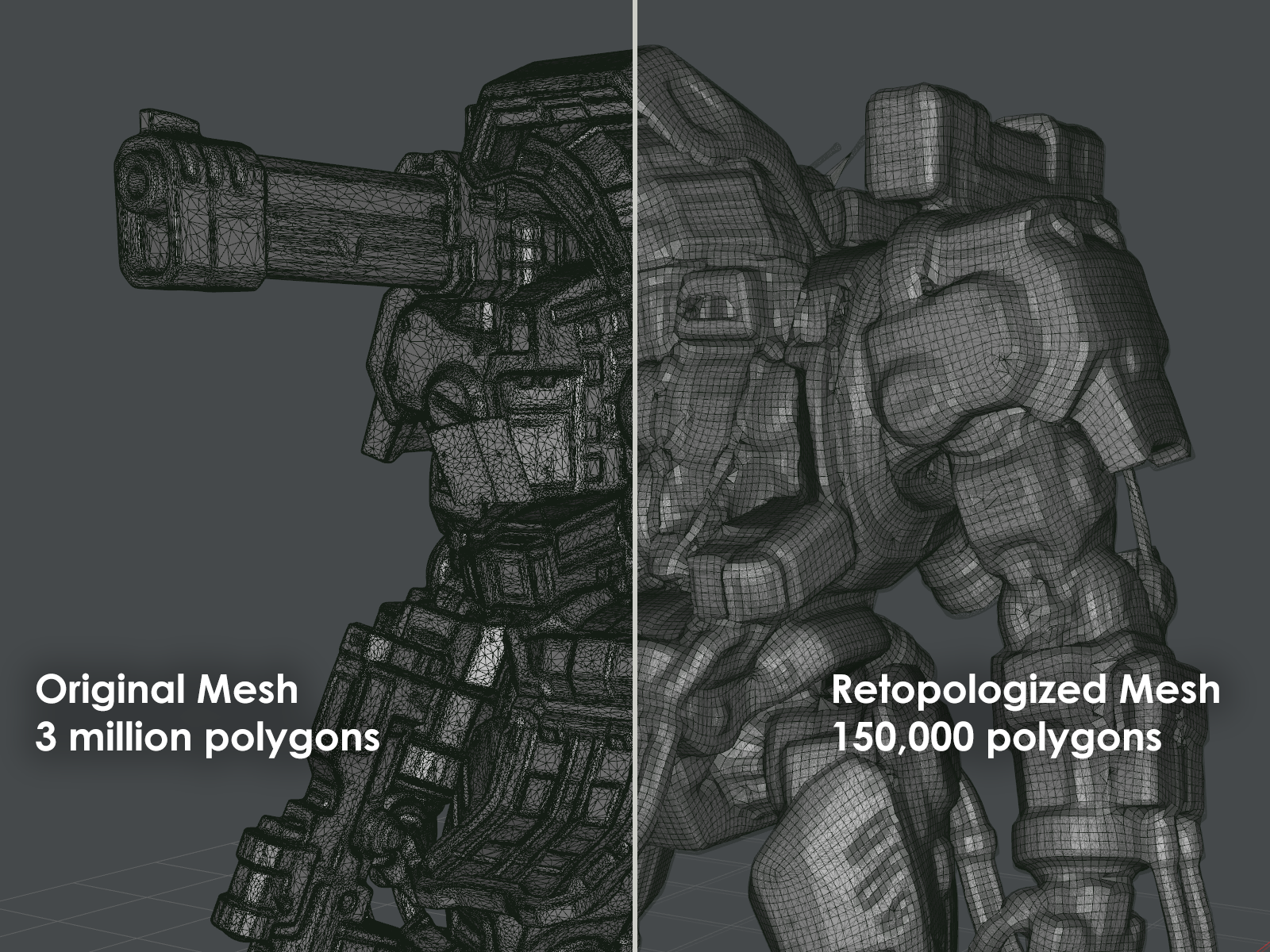
- Manual Remesh — when you want control: quad retopology built on a proven mixed-integer quadrangulation solver. Pick Organic or Hard-Surface, set a target quad count, and let it run. The target defaults to your model's polygon count, with one-click 75% / 66% / 50% / 33% / 25% / 10% presets so you can dial density in seconds. Or you can paint density where you need more resolution and leave flat areas light.
- Auto Remesh — when you want speed: solve an orientation field and a position field, then extract topology that follows the surface. Run it as it comes, or steer the flow yourself first — comb the field along a limb, pin it with a magnet, or scare it away from an area you want left alone. It's not as accurate as manual, but it's super fast!
Both paths produce quad-dominant meshes that are actually pleasant to animate, subdivide, or edit downstream.
Already Happy With The Topology?
Turn triangles into quads without moving a single vertex.
Not every model needs rebuilding. If the shape is already right and only the triangulation is in the way — a glTF export, a CAD conversion, an asset that lost its quads somewhere along the pipeline — Make Quads pairs the triangles back into quads in place. Your vertices, UVs, normals, materials and textures are untouched. Only the polygons change.
It scores every possible pairing and takes the best ones first, keeps hard edges and material borders intact, and refuses merges that would leave a vertex short of the four edges a quad grid needs. A second pass then re-cuts runs where the edge flow kinks, so loops stay straight instead of shearing into parallelograms. Run it on the whole model, or select a region and quad up just that part.
UV Unwrapping & Inspection
A clean atlas, and a way to check it before you commit.
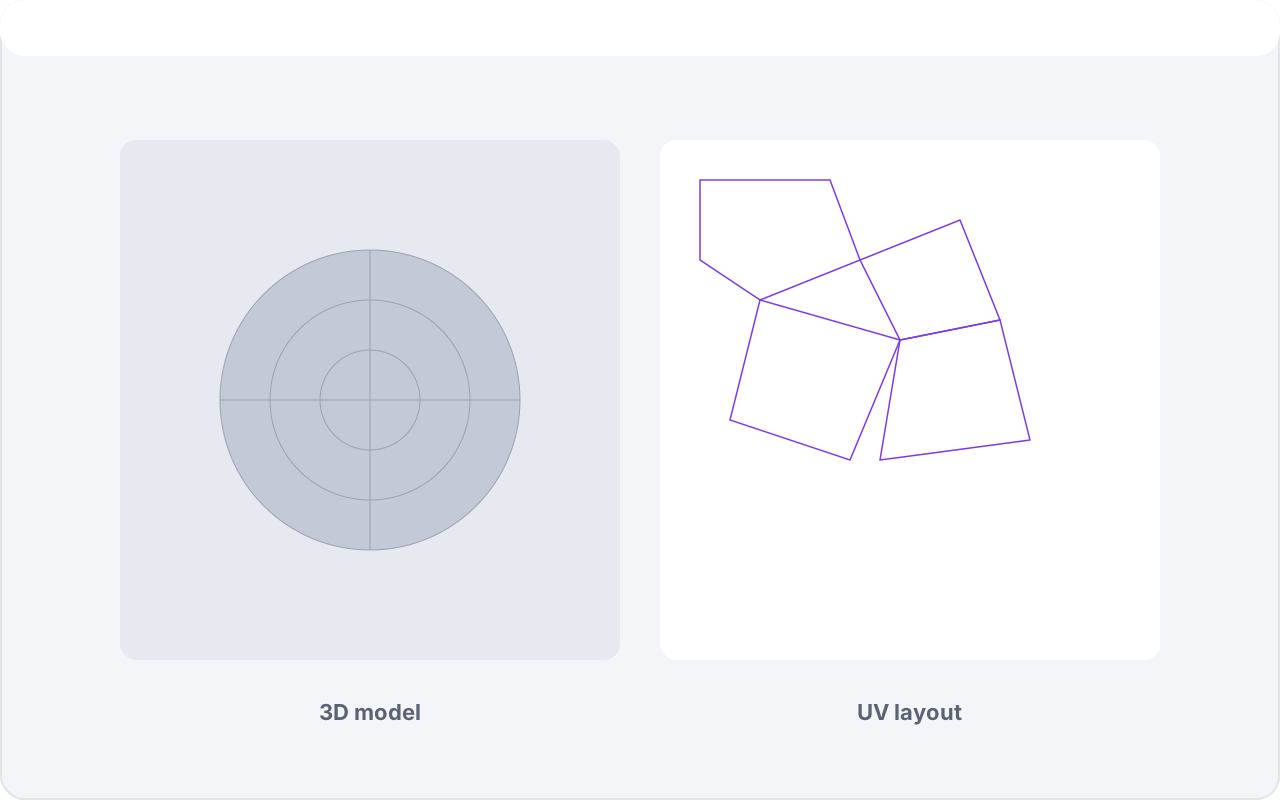
Automatic UV unwrapping produces a clean atlas from the new topology, including per-material UV maps for multi-material assets. A dedicated UV inspector lets you see the layout, isolate by material, and confirm the unwrap before you commit to baking.
Four unwrap engines, picked per run: Lightmap packs tightly for baking and lightmapping; Artist favours lower distortion and more natural islands for hand-painting; Vertexix guides the cuts with the same orientation field the retopology uses, so seams land along the flow rather than across it; and Grid Unwrap takes the fast path on a quad mesh, walking the grid instead of solving for it. Same mesh, four very different atlases — try them and keep the one that suits the job.
Or place the seams yourself. Seam Tools lets you click edges to mark a seam, Alt+click to run it around a loop, and Suggest Seams to have Vertexix propose a set from sharp angles and flat-region clustering before you edit it by hand. Seams save and load with the project, and the Vertexix and Grid Unwrap engines treat them as forced cuts.
UDIM Support - Film and VFX assets don't fit in one 0-1 square. Vertexix reads UDIM layouts natively — load a multi-tile model and it works out which tile each material occupies, names the sets, and shows the whole grid in the UV inspector with every tile wearing its own texture.
Bake The Detail Back On
This is where the high-poly detail gets preserved.
Vertexix resamples your original model onto the new UVs and bakes:
- Base color / albedo, metallic-roughness, and ambient occlusion via Transfer Texture.
- Tangent-space normal maps baked straight from the high-poly geometry, with options to transfer or combine an existing source normal map.
- Ambient occlusion, generated on demand.
- Cavity, Curvature and Edge masks — ray-probed from the surface itself, ready for edge-wear and dirt work in your texturing pipeline (Ultra).
- Height and displacement maps at any resolution, ready to paint into — displacement moves real geometry in the viewport as you work.
- Vertex colors, baked from any textured layer straight into the mesh.
You control the details that matter in production: resolution up to 32768 (Ultra Version), edge padding to stop seams from cracking, adjustable ray distance, optional 16-bit output (Ultra), and supersampling (1x / 4x / 9x samples per texel) when you want the cleanest possible result. Metallic and roughness can be written as separate maps — the format FBX and most engines actually expect. On a UDIM asset the bake can be written straight out as numbered tiles.
A Real 3D Painting Suite
Paint every PBR channel directly on the model.
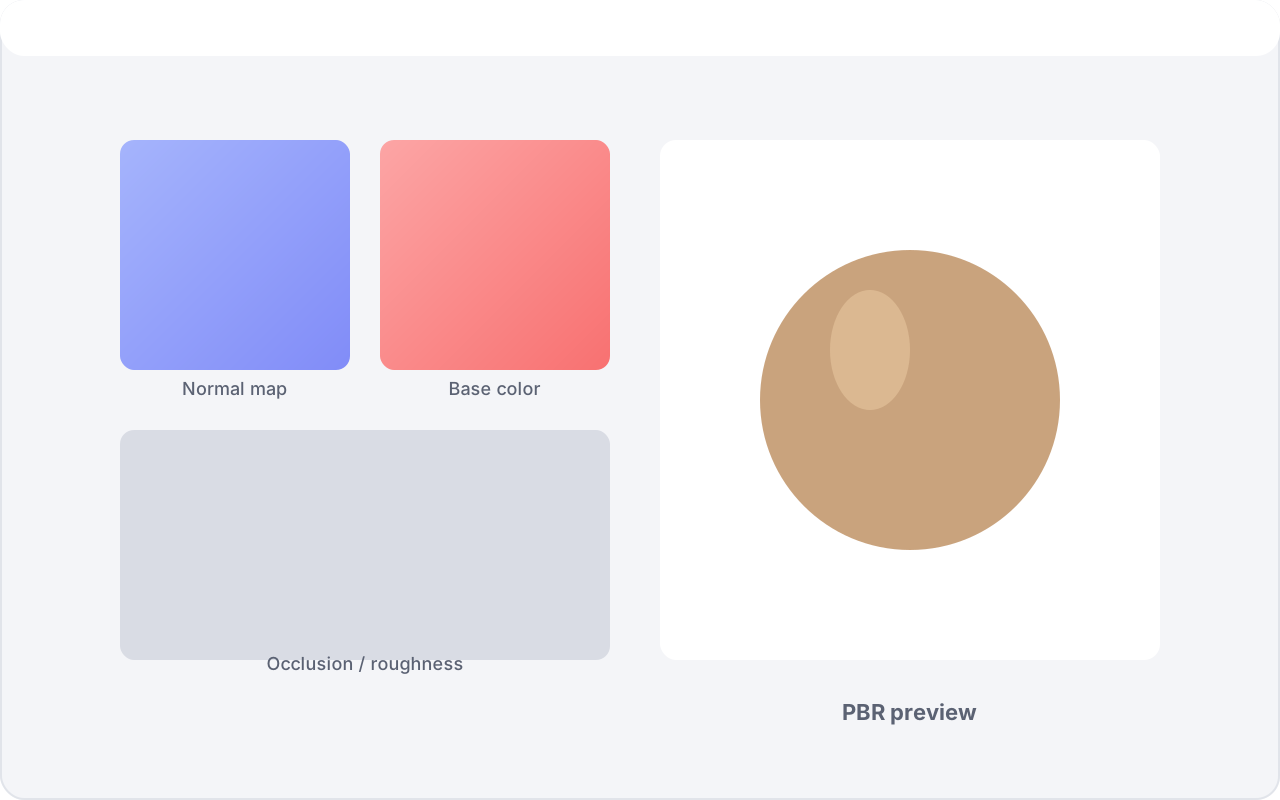
The Paint mode is a full texturing workspace, not a touch-up tool. Paint base color, metallic, roughness, occlusion, emission, height, displacement — even the normal map — right on the mesh, each channel with its own strength.
- Image brushes with Photoshop-style dynamics — build your own brush library, then drive it with size, angle, opacity and color jitter, scatter and count controls, and the full set of familiar blend modes (Multiply, Screen, Overlay, Color Dodge and the rest). A live stroke preview shows exactly what a stroke will do before you touch the mesh.
- Brushes that follow your hand — Rake mode rotates the brush image to follow the stroke's direction, arrow keys spin it by hand, and real pressure-sensitive stylus support drives size and opacity live.
- Real texture layers — every channel of every material carries its own Photoshop-style layer stack: blend modes, per-layer opacity, folders, lock, visibility and solo, drag to reorder, merge down or flatten — with the shortcuts you already know (Ctrl+J duplicate, Ctrl+G group, Ctrl+Shift+E merge).
- Layer masks — give any layer a mask and paint it in or out non-destructively. Invert it, edit its black point, white point and midtones in a levels editor, or bake one from the model itself: an occlusion mask at any resolution, or — on Ultra — cavity, curvature and edge masks probed off the geometry.
- Stencil painting — build a stencil library from your own greyscale images, float any stencil over the viewport as a screen-locked pattern with opacity, tiling, rotation, scale, stretch and drag-to-position controls, then paint straight through it with whichever brush you're holding. A translucent trail shows exactly where your strokes have landed through the pattern.
- Masking that remembers — protect regions with painted, lasso, box, polygon or circle masks, erase mask strokes with a right-click drag, undo any mask edit, and store masks in 12 memory slots (F1–F12) for instant recall.
- The practical tools — eraser and smudge brushes, a clone brush that works across every channel, a blur tool that reaches into the UV padding so seams stay clean, an eyedropper, a dockable Color Picker and Swatches panel, and full paint undo/redo.
- A Scratch Pad to build surfaces on — capture what's on screen, draw on it, tile it, or load images into it, then generate the maps a material needs straight from that image: normal, height, displacement and occlusion, each with invert, blur, black/white levels, midtones and strength. A lit shader ball previews the result. Save the lot as a surface preset and it joins a browsable library with folders and thumbnails — pick one later and Vertexix creates whatever layers the material is missing. The Clone Brush works in both directions between the pad and the model.
- Painting runs on the GPU — brush dabs, masks, stencils and the layer composite are all done on the graphics card, with only the triangles actually under the brush submitted and only the changed tiles sent back. It's on by default and there's a switch in Settings if you'd rather it wasn't.
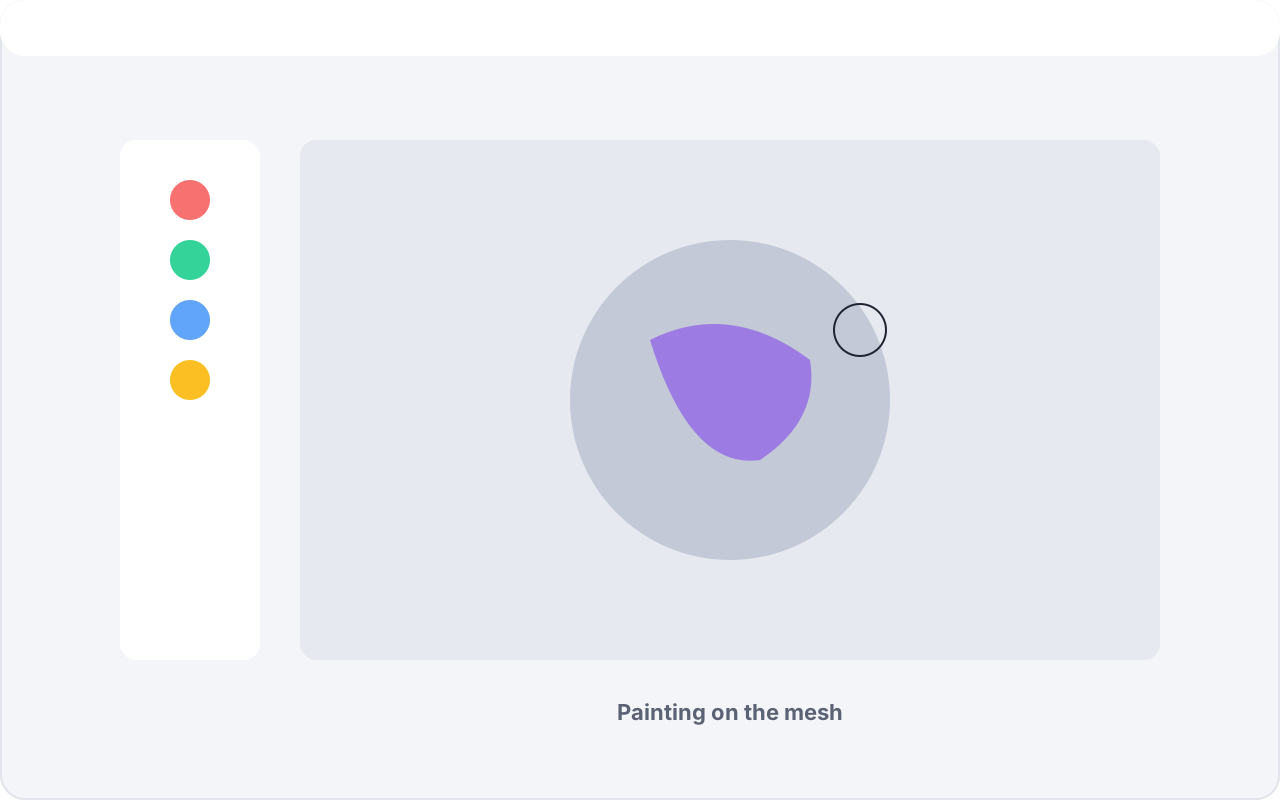
Sculpt Without Leaving The App
Nudge the surface until it's right.
Sculpting mode puts twelve brush deformers on the loaded mesh — Brush, Inflate, Smooth, Flatten, Pinch, Crease, Fill, Scrape, Grab, Rotate, Layer and a Mask brush to protect what you've already got. Adjustable radius, falloff and intensity, right-click to invert any brush, stylus pressure support, and its own undo/redo — perfect for smoothing scan noise or fixing a dent before you retopologize.
Every tool remembers its own radius, falloff and intensity, so switching from Grab to Smooth doesn't cost you your settings. Give a brush an alpha to sculpt texture rather than form, rake it along the stroke, drop it as a single stamp, Shift+click to run a straight line between two points, restrict it to front faces so you don't dent the far side of the mesh, and cap how far a stroke can push with Maximum Intensity. Save any of it as a named preset. Stencils work here too — the same library the Paint mode uses. Sculpt the loaded mesh, or the new topology after you've built it.
See It The Way The Engine Will
What you approve on screen is what ships.
A real-time PBR preview with image-based lighting shows your material maps working together under realistic light before you ever export — including directional-light shadows, with painted displacement physically offsetting the geometry and casting real shadows of its own.
When something looks wrong, isolate it: a one-click layer row along the bottom of the viewport shows any single channel on its own — albedo, normals, roughness, occlusion, cavity and the rest — and World Normals and Depth Map debug views help you see what the shading is actually working with. Prefer clay? MatCap display is one keypress away.
The preview speaks modern glTF, not just the base PBR set: iridescence, transmission and
dispersion, sheen, clearcoat, anisotropy, specular colour, volume thickness and subsurface
scattering all render, and a material with packaged variants gets a selector to switch
between them. Ultra adds OpenPBR shading, with MaterialX
.mtlx load and save for the materials you author against it.
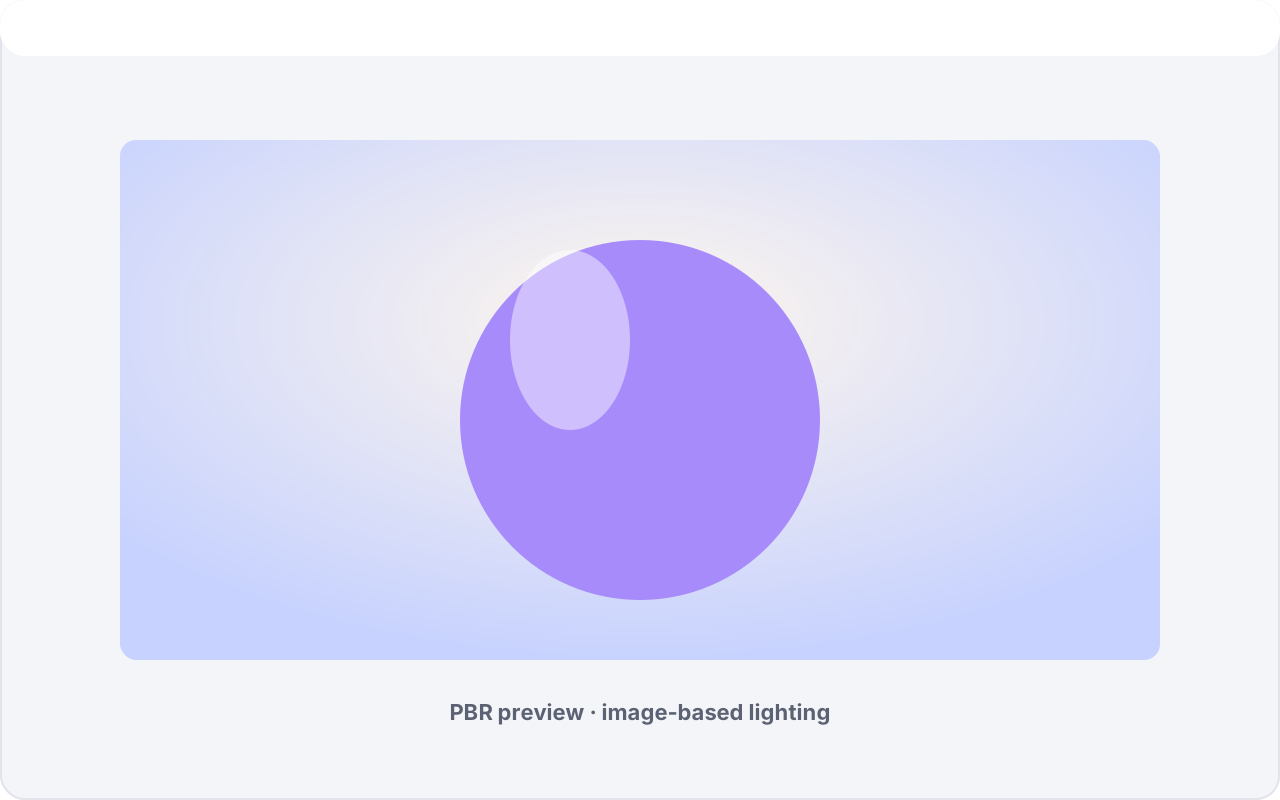
Rigged & Animated Assets Survive The Trip
Retopology doesn't have to mean re-rigging from scratch.
Import a skinned, rigged model and Vertexix keeps the rig in the picture — view bones and bone weights, preview animation, and export a rigged glTF with skin weights carried onto the new topology.
Scans and sculpts rarely arrive standing up straight — Stand Up puts the mesh back onto its own skeleton's bind pose so you can see what you actually have. Play a clip, scrub it, loop it, and drive either the original or the retopologized mesh with it. Animation clips are written into the exported glTF, and you can export the loaded model rigged as well as the new one.
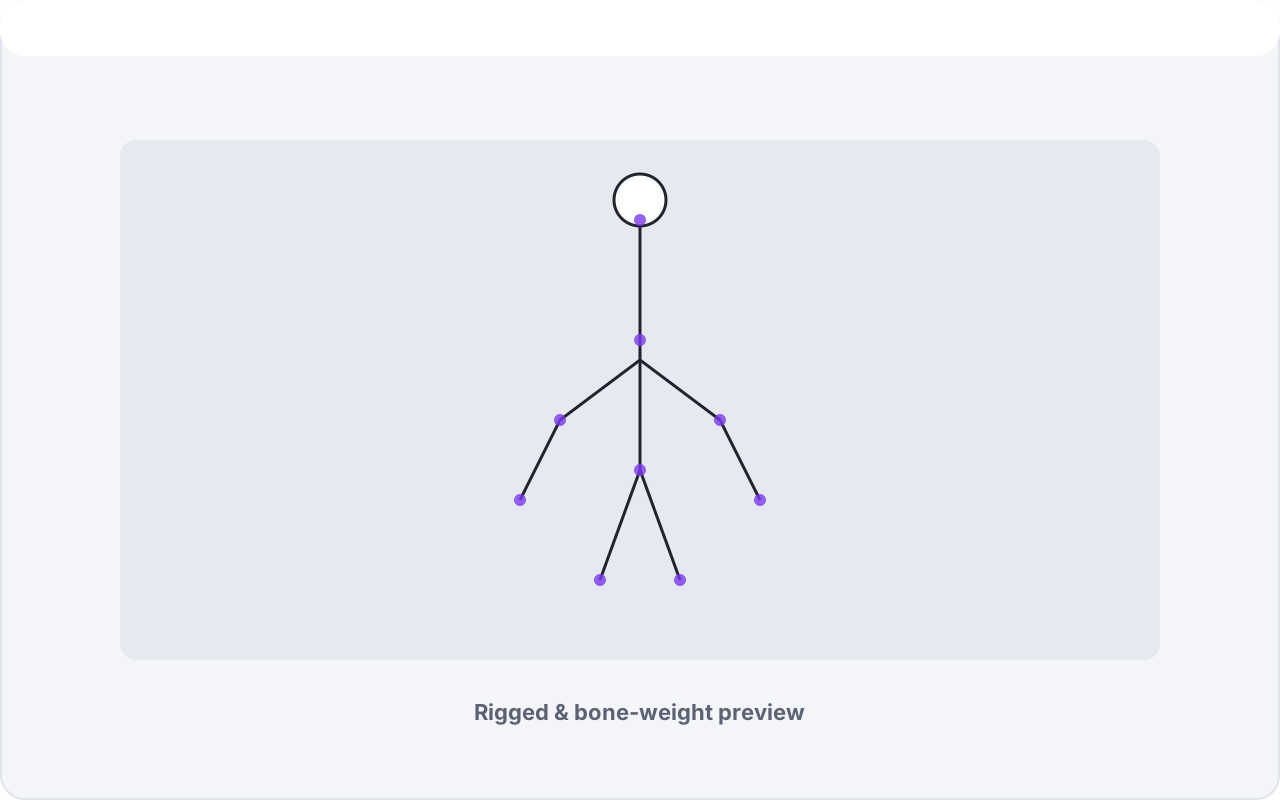
Built For A Real Pipeline
Everything around the core workflow, handled.
Broad format support
Import via a wide-format engine — FBX, glTF/GLB, OBJ, Collada and more, with embedded textures and PBR + legacy materials. Export to seven formats: OBJ, PLY, FBX, GLB, glTF, Collada and STL.
Works as a plain converter
You don't have to retopologize anything. Load a model and export it straight back out in another format, at any point — no remesh, no bake, no ceremony.
Mesh optimization
Vertex cache and vertex fetch reordering for GPU-friendly output — as a preprocess pass on the source mesh, a post-process pass on the result, or both.
Realtime subdivision
Preview your low-poly cage smoothly subdivided as you work, so you can judge the silhouette the way it will actually be rendered rather than guessing from the control mesh.
Selection tools
Grow/shrink, loop select, select a whole connected shell in one press, lock and restore selections, and save/load selections to disk. Hide the selection, isolate it, or bring everything back — handy for working on one panel of a busy model.
Materials & textures
Merge materials into groups or split them apart, hide any material with one click, and step through every texture on the model. View any map on its own, or isolate its red, green or blue channel to see exactly what a packed texture is carrying.
Quality-of-life
A ground grid and rest-on-ground, Ctrl+right-click to swing the camera square to any polygon, progress popups you can cancel, undo/redo for painting, sculpting and retopology, customizable keyboard shortcuts, multi-monitor support and UI scaling.
10 languages
English, German, Spanish, French, Italian, Portuguese, Russian, Japanese, Korean, and Chinese — switchable at runtime.
Who It's For
Same tool, three very different days.
The 3D artist
Take a multi-million-triangle sculpt to clean, animation-ready topology with the fine detail baked into normal and PBR maps — then texture-paint and sculpt with real brushes, pressure and masks, without leaving the app.
The game maker
Turn dense source assets into optimized, correctly-mapped models with separate metallic/roughness maps and padded, seam-safe bakes that drop straight into your engine as FBX or glTF.
The hobbyist
Skip the intimidating multi-tool workflow. Load a model, follow the numbered steps, and get a clean, textured result you can actually be proud of — at your own pace, in your own language.
Compare Versions
Four editions, one pipeline.
| Feature | Free | Vertexix Light | Vertexix | Vertexix Ultra Recommended |
|---|---|---|---|---|
| Retopology | ||||
| Realtime subdivision | ✗ | ✓ | ✓ | ✓ |
| Realtime subdivision ceiling | 500,000 | 2,000,000 | 4,000,000 | Unlimited |
| Preprocess optimization | ✗ | ✗ | ✓ | ✓ |
| Vertex density | ✓ | ✓ | ✓ | ✓ |
| Point-cloud scan reconstruction | ✓ | ✓ | ✓ | ✓ |
| Post-process optimization | ✗ | ✗ | ✓ | ✓ |
| Make Quads (triangles → quads) | ✗ | ✓ | ✓ | ✓ |
| Make Quads edge-flow repair | ✗ | ✗ | ✓ | ✓ |
| UV Mapping | ||||
| Create multiple UV maps | 1 | 3 | 6 | Unlimited |
| UDIM Support | ✗ | ✗ | ✓ | ✓ |
| UV unwrap engines | Lightmap | Lightmap | Lightmap + Artist + Field-Guided + Grid Unwrap | Lightmap + Artist + Field-Guided + Grid Unwrap |
| Seam Tools (manual seams, Suggest Seams) | ✗ | ✗ | ✓ | ✓ |
| Texture Transfer | ||||
| Transfer textures | ✓ | ✓ | ✓ | ✓ |
| Max texture size | 1024 | 2048 | 8192 | 32768 |
| 16-bit texture map | ✗ | ✗ | ✗ | ✓ |
| Bake supersampling | 1× | 1× | 4× | 9× |
| Normal Maps | ||||
| Create normal maps | ✓ | ✓ | ✓ | ✓ |
| Max normal map size | 1024 | 2048 | 8192 | 32768 |
| 16-bit normal maps | ✗ | ✗ | ✗ | ✓ |
| Bake supersampling | 1× | 1× | 4× | 9× |
| Painting & Sculpting | ||||
| Paint every PBR channel on the model | ✓ | ✓ | ✓ | ✓ |
| Clone, Blur, Smudge & Eraser brushes | ✓ | ✓ | ✓ | ✓ |
| GPU-accelerated painting | ✓ | ✓ | ✓ | ✓ |
| Image brushes & brush dynamics | ✓ | ✓ | ✓ | ✓ |
| Photoshop-style brush blend modes | ✓ | ✓ | ✓ | ✓ |
| Pressure-sensitive stylus support | ✓ | ✓ | ✓ | ✓ |
| Paint masking with undo & 12 memory slots | ✓ | ✓ | ✓ | ✓ |
| Texture layers (blend modes, folders, merge) | ✓ | ✓ | ✓ | ✓ |
| Layer masks (paint, levels, invert) | ✓ | ✓ | ✓ | ✓ |
| Stencil painting | ✓ | ✓ | ✓ | ✓ |
| Max stencil image size | 1024 | 2048 | 4096 | 8192 |
| Sculpting mode (12 brush tools) | ✓ | ✓ | ✓ | ✓ |
| Scratch Pad & PBR map generation | ✓ | ✓ | ✓ | ✓ |
| Surface Presets library | ✓ | ✓ | ✓ | ✓ |
| Make ambient occlusion map | ✓ | ✓ | ✓ | ✓ |
| Max size AO map | 1024 | 2048 | 8192 | 32768 |
| Make height map | ✗ | ✓ | ✓ | ✓ |
| Create displacement map | ✗ | ✗ | ✓ | ✓ |
| Bake vertex colors | ✗ | ✗ | ✓ | ✓ |
| Cavity, Curvature & Edge maps | ✗ | ✗ | ✗ | ✓ |
| Animation | ||||
| Show bones | ✓ | ✓ | ✓ | ✓ |
| Show weight maps | ✓ | ✓ | ✓ | ✓ |
| Copy bones to new mesh | ✗ | ✗ | ✗ | ✓ |
| Copy weight map to new mesh | ✗ | ✗ | ✗ | ✓ |
| Animation playback | ✓ | ✓ | ✓ | ✓ |
| Copy animation to new mesh | ✗ | ✗ | ✗ | ✓ |
| Viewport & Preview | ||||
| PBR preview with image-based lighting | ✓ | ✓ | ✓ | ✓ |
| Advanced glTF material extensions | ✓ | ✓ | ✓ | ✓ |
| Real-time shadows & displaced geometry | ✓ | ✓ | ✓ | ✓ |
| Layer isolation & debug views | ✓ | ✓ | ✓ | ✓ |
| Custom HDR environments | ✗ | ✗ | ✓ | ✓ |
| Save/load PBR presets | ✗ | ✗ | ✓ | ✓ |
| OpenPBR shading | ✗ | ✗ | ✗ | ✓ |
| Workflow | ||||
| Selection tools (grow, loop, connected shell) | ✓ | ✓ | ✓ | ✓ |
| Hide & isolate polygons | ✓ | ✓ | ✓ | ✓ |
| Saved selections (F1–F12) & group highlight | ✓ | ✓ | ✓ | ✓ |
| Save / load selections to disk | ✗ | ✗ | ✓ | ✓ |
| Project save & load (.vxp) | ✓ | ✓ | ✓ | ✓ |
| Customizable keyboard shortcuts | ✗ | ✓ | ✓ | ✓ |
| Customizable interface themes | Presets only | ✓ | ✓ | ✓ |
| Edit material properties | ✗ | ✗ | ✓ | ✓ |
| Interface languages | 10 | 10 | 10 | 10 |
| Import & Export | ||||
| Import formats | All | All | All | All |
| Export formats | OBJ, PLY | + FBX, GLB | + glTF, Collada, STL | + glTF, Collada, STL |
| OpenEXR image export | ✗ | ✗ | ✓ | ✓ |
| Cost | ||||
| Price | Free | $5 | $10 | $20 |
Get Vertexix
One tool for the part of the job nobody enjoys doing by hand — done well. Try it on your own model and see your topology and textures come out the other side clean.
Download / Buy Vertexix