UV Editor
The UV Editor is where you change a UV layout by hand: select vertices, edges, faces or whole islands, then move, turn, scale, unwrap, straighten, align, pack or weld them. It works on the UV layout of whichever mesh is on screen, and the texture follows what you move, so baked and painted images stay on the model as they were. Editing the layout is a Regular and up feature; every edition can open the window, look, select and measure (see Editions).
Opening the UV Editor
- Window → UV Editor.
- The UV Editor icon on the icon toolbar, just below the Image Viewer icon. It is lit while the window is open; click it again to close the window.
- The Edit UVs... button in the Generate UV Map panel, under the unwrap button. It is available once a model is loaded.
The UV Editor is a window of its own and never docks. It remembers its size, and whether it was open is saved with your panel layout. Closing it frees the memory its canvas used.
Which mesh it edits
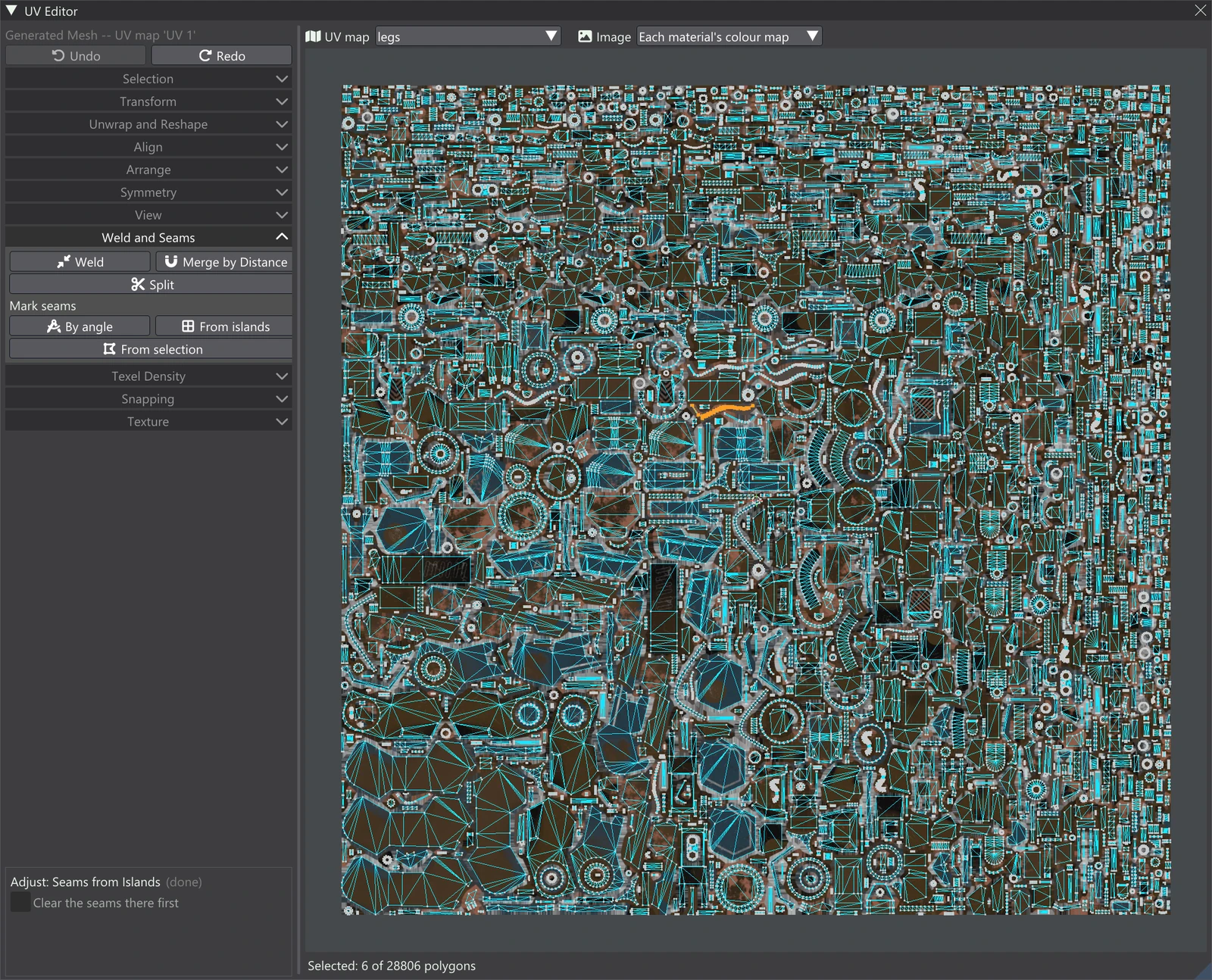
The editor always edits the mesh the viewport is showing, and the first line of the column says which layout that is:
- Generated Mesh -- UV map 'name': the created topology's current UV map (the one chosen in Generate UV Map). On the Generated Mesh each material's islands sit in that material's own UDIM tile.
- Loaded Mesh -- UV channel 'name': the imported model's own UVs, in the UV channel the model is currently shown with.
Switch the viewport between the two meshes and the editor switches with it (see Loaded vs Generated Mesh). When there is nothing to edit, the window says why instead: Load a model first., This model has no UVs., or The Generated Mesh has no UV map yet: Generate UV Map first.
If the layout is changed outside the editor (a new unwrap, for example), the editor reads it again and its undo history for that mesh starts over.
The window
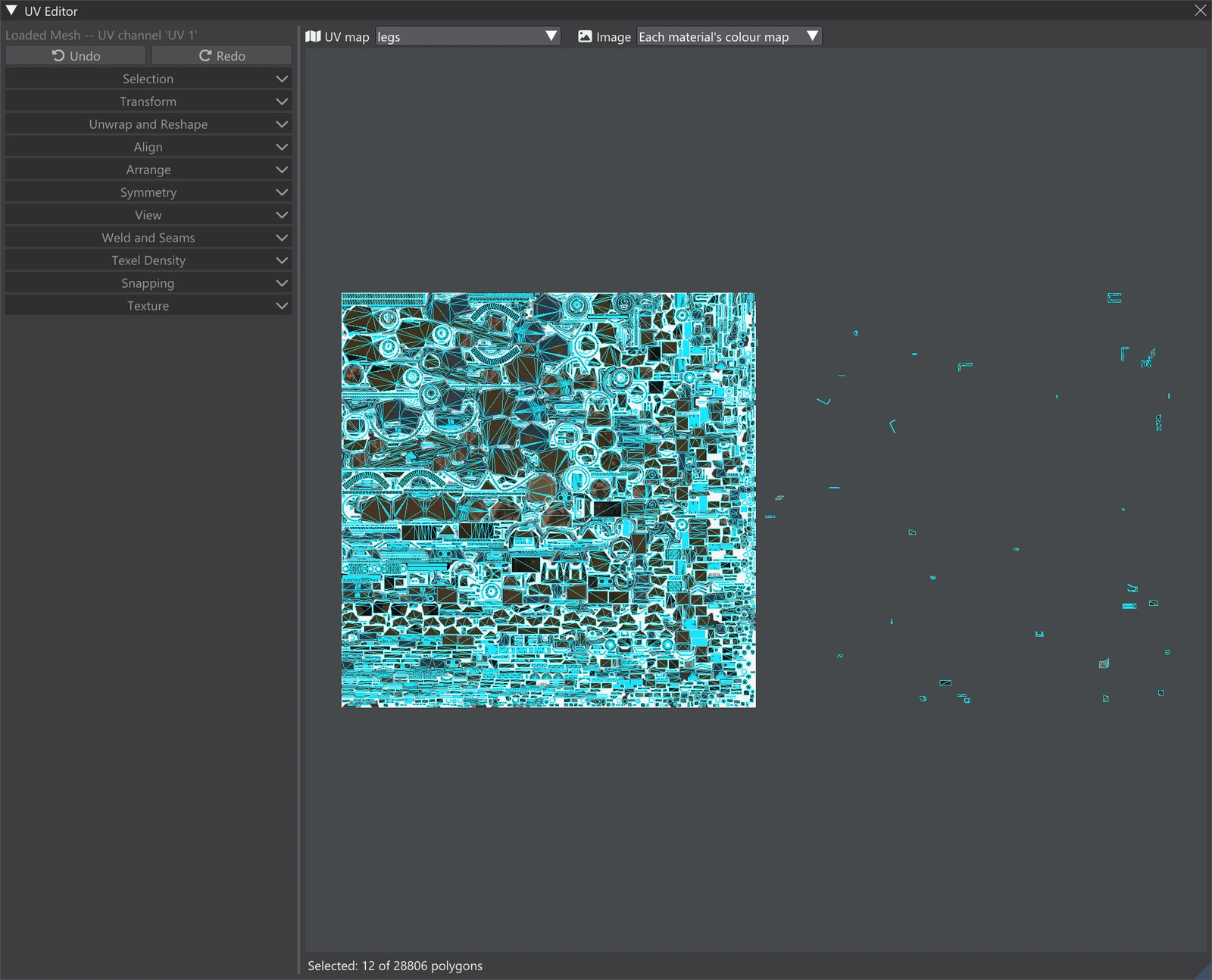
From top left to bottom right:
- The tool column — the accordions, one open at a time (opening one closes the others;
pin one with the thumbtack on its bar to keep it open), in this order:
- Selection — the selection modes, sticky selection, box and lasso, Sync with 3D and the select tools.
- Transform — the Move, Rotate and Scale tools, the pivot, typed values, flips and quarter turns.
- Unwrap and Reshape — pins, Unwrap in Place, Project Unwrap, Mirror-Aware Unwrap, Normalize, Straighten, Rectify and Gridify.
- Align — Align Edge Loops, Align to Axis, Orient to World, Match Size, Distribute and Align Seams.
- Arrange — Relax, Circle and Offset Border; stacking, sorting, stitching and copying island shapes; Pack Islands, Map Layout and Body Parts.
- Symmetry — Symmetrize and Snap to Symmetry.
- View — what the canvas draws, Frame All / Frame Selected, the overlays, Unfold and the checker.
- Weld and Seams — Weld, Merge by Distance, Split, and marking seams.
- Texel Density — measuring and setting texel density.
- Snapping — whole-texel snapping, step snapping and Keep in tile.
- Texture — Texture follows the island, its padding, and clearing the texels left behind.
- The Adjust box — at the bottom of the column, once a tool has run. See below.
- The splitter — the thin bar between the column and the canvas. Drag it left or right to make the column narrower or wider.
- The bar above the canvas — the UV map dropdown (which of the Generated Mesh's UV maps), the Material dropdown (which material's part of it is shown and edited) and the Image dropdown (which image the canvas draws under the layout). See Canvas, Map Bar & Shortcuts.
- The canvas — the layout itself, where you select and drag. See Canvas, Map Bar & Shortcuts.
- The polygon count under the canvas — Selected: N of M polygons, of the map shown.
A tool that solves in the background shows its name with solving..., a progress bar and Cancel at the top of the column. Cancel stops the solve, and nothing changes.
The Adjust box (Adjust Last Operation)
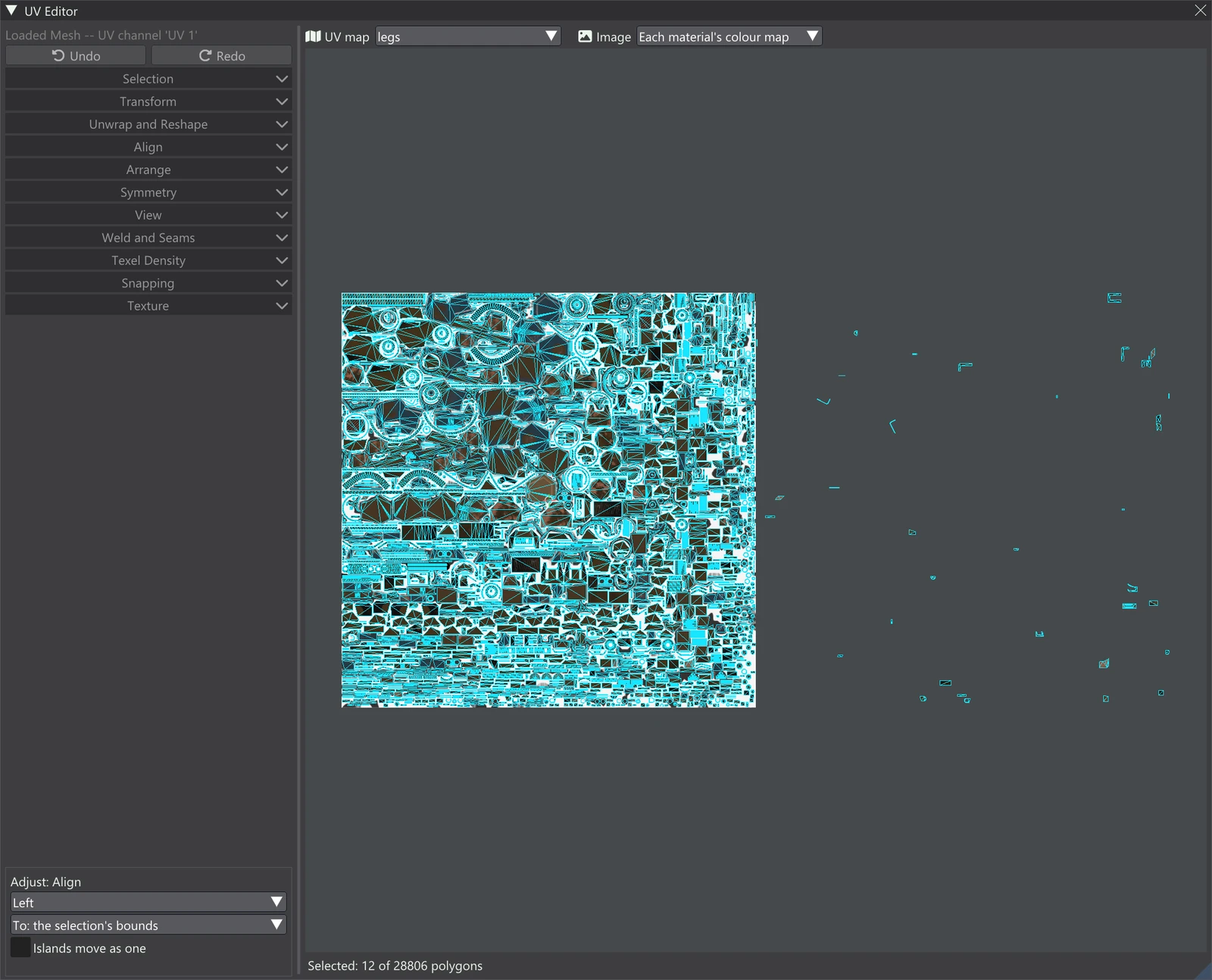
Most tools run straight away with the settings they used last, and then show those settings in a box at the bottom of the column, titled Adjust: and the tool's name. Change any of them and the tool is taken back and run again with the new value, from the same selection it started from. However many times you adjust it, it stays one undo step. A slider re-runs the tool once, when you let go of the mouse button, not on every step of the drag.
- The box stays adjustable only until anything else happens: another edit, an undo, or a new selection. After that, (done) appears after its title and its controls are greyed out — the tool would otherwise run on something it never ran on.
- A tool without settings shows It has no settings.
- Select tools have an Adjust box too: changing a setting makes the selection again from the one it started from. See Selection.
- The values you adjust are what the tool starts from the next time you run it, for the rest of the session.
Each tool's Adjust settings are described on its accordion's page.
Undo and Redo
Every UV edit is undoable. Use the Undo and Redo buttons at the foot of the column (under the layout's name: which mesh and which UV map or channel is being edited), or, while the UV Editor window is active, Ctrl+Z to undo and Ctrl+Shift+Z (or Ctrl+Y) to redo. Undo also puts back the texture that followed the edit. The Loaded Mesh and the Generated Mesh each keep their own history; the buttons step through the one of the mesh being edited.
The texture follows the island
When UVs move, the texels under them move too, so the colour, normal and other maps stay on the model as they were instead of sliding across it. This is on by default and can be switched off, along with how much of the surrounding gutter travels with an island, in the Texture accordion.
When editing waits
Edits are held back while something else is changing the same data. The disabled buttons' tooltips say why: a UV solve is running (wait for it or cancel it), a UV map or bake is being made, a paint or sculpt stroke is under way, or the mesh itself is being loaded, remeshed or rebuilt. Selecting and measuring still work.
Editions
- Regular and Pro edit UVs: every tool in the column.
- Free and Light can open the window, view the layout, select (including every select tool and Sync with 3D), measure, and use the View accordion. The buttons that change the layout are disabled, with a note naming the edition that unlocks them.