View
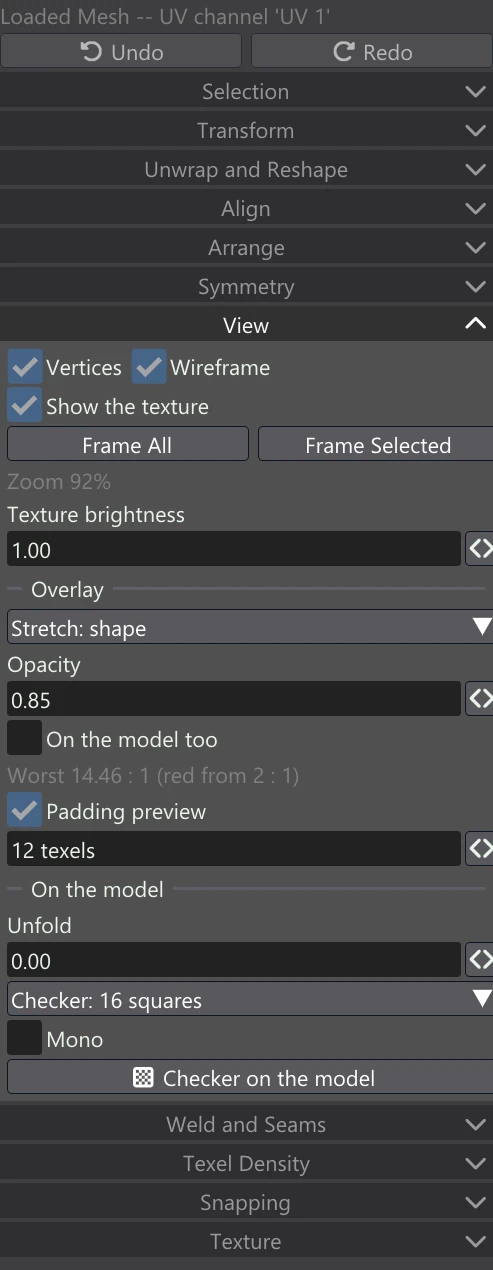
The View accordion changes how the layout is shown, on the canvas and on the model in the 3D view. Nothing in it changes the layout or any texture, so every edition can use all of it, including Free and Light.
What the canvas draws
| Control | What it does |
|---|---|
| Vertices | Draw a dot at every UV vertex. |
| Wireframe | Draw the edges of the layout, in the colour of the Quad-Patcher window's Wire Frame swatch. |
| Show the texture | Draw each face with its material's colour map, as the model shows it (or whatever the Image dropdown above the canvas picks). While you drag, the moving faces carry their texture along when Texture follows the island is on, so you see the result before you let go. |
| Frame All | Fit every tile in view. Shortcut: Home. With the Material dropdown showing one material, it frames that material's tiles. |
| Frame Selected | Fit the selection in view. Shortcut: F. |
| Zoom | A readout of the canvas zoom, as a percentage. |
| Texture brightness | Make the canvas's texture brighter or darker (0.1 to 4; 1 is as it is), so you can read the layout over a dark map. Only the canvas changes; the texture itself does not. |
Overlay
The overlay colours every face by a measurement of its UVs. Pick one from the dropdown; None turns it off.
| Overlay | What the colours mean |
|---|---|
| Stretch: shape | How much the UVs distort the face's shape. White: none (the face has the same proportions in the layout as on the model). The more one direction is stretched against the other, the redder it gets, fully red from 2 : 1. It is measured in texels, so a non-square image does not read as stretch. |
| Stretch: area | How large the face is in the layout compared to its size on the model, against the layout's average. White: the average. Blue: smaller (fewer texels than average). Red: larger. The colour is full at four times (or a quarter of) the average. |
| Texel density | Each face's texels per unit of 3D length, against the median of the layout. White: the median. Blue: lower. Red: higher, fully red at twice the median and fully blue at half of it. |
| Islands | A colour of its own for every island, so you can see where one island ends and the next begins and which pieces are separate. |
With an overlay on, more controls appear under the dropdown:
| Control | What it does |
|---|---|
| Opacity | How strongly the overlay's colours cover the faces (0.05 to 1). |
| On the model too | Show the same colours on the model in the 3D view as well, while the UV Editor is open. |
| The legend line | The range the colours stand for, in grey under the controls. Stretch: shape gives the worst face, for example Worst 14.46 : 1 (red from 2 : 1); Stretch: area gives the smallest and largest face against the average, for example 0.25x to 3.10x the average size; Texel density gives the lowest and highest density in texels per unit. Islands has no legend. |
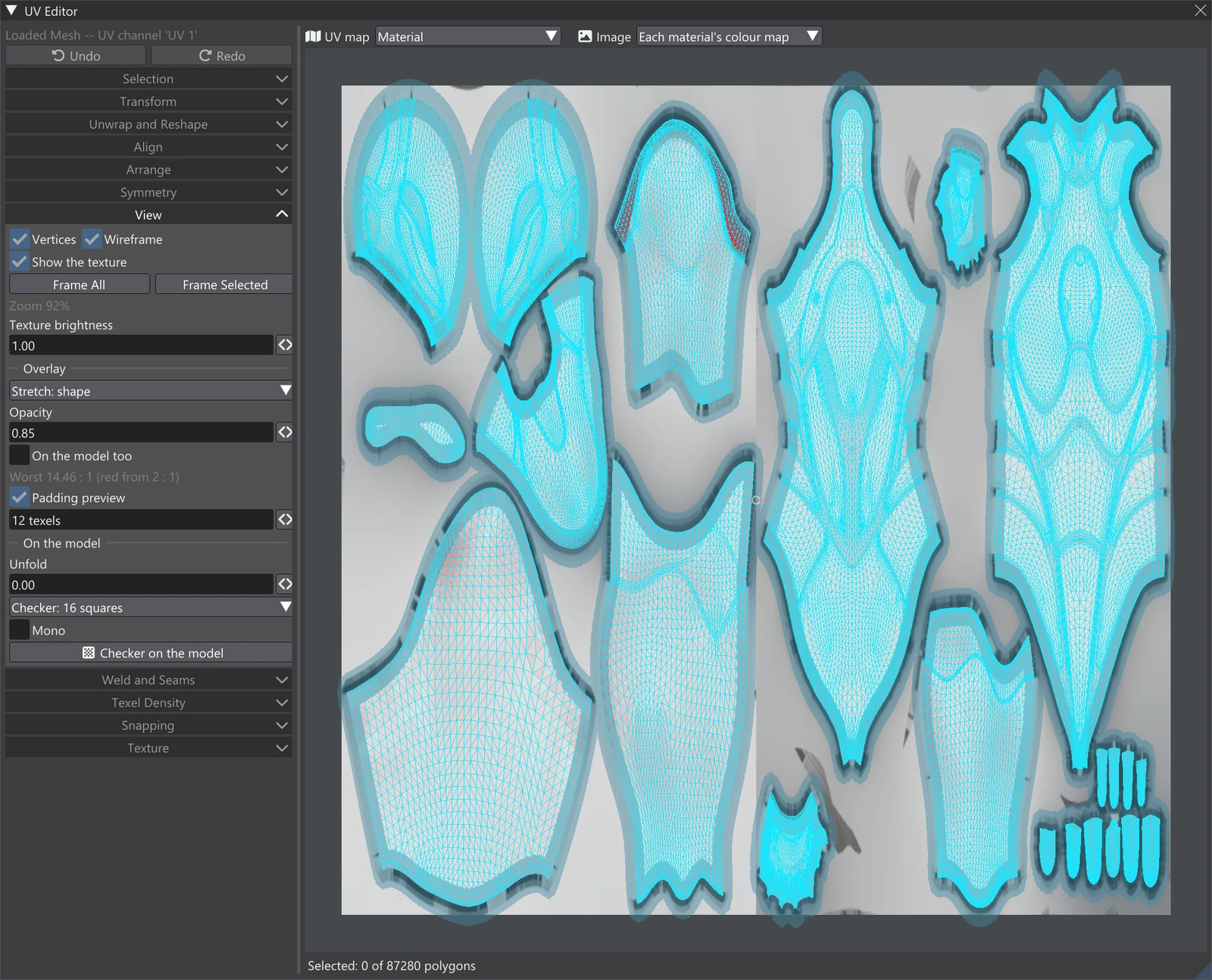
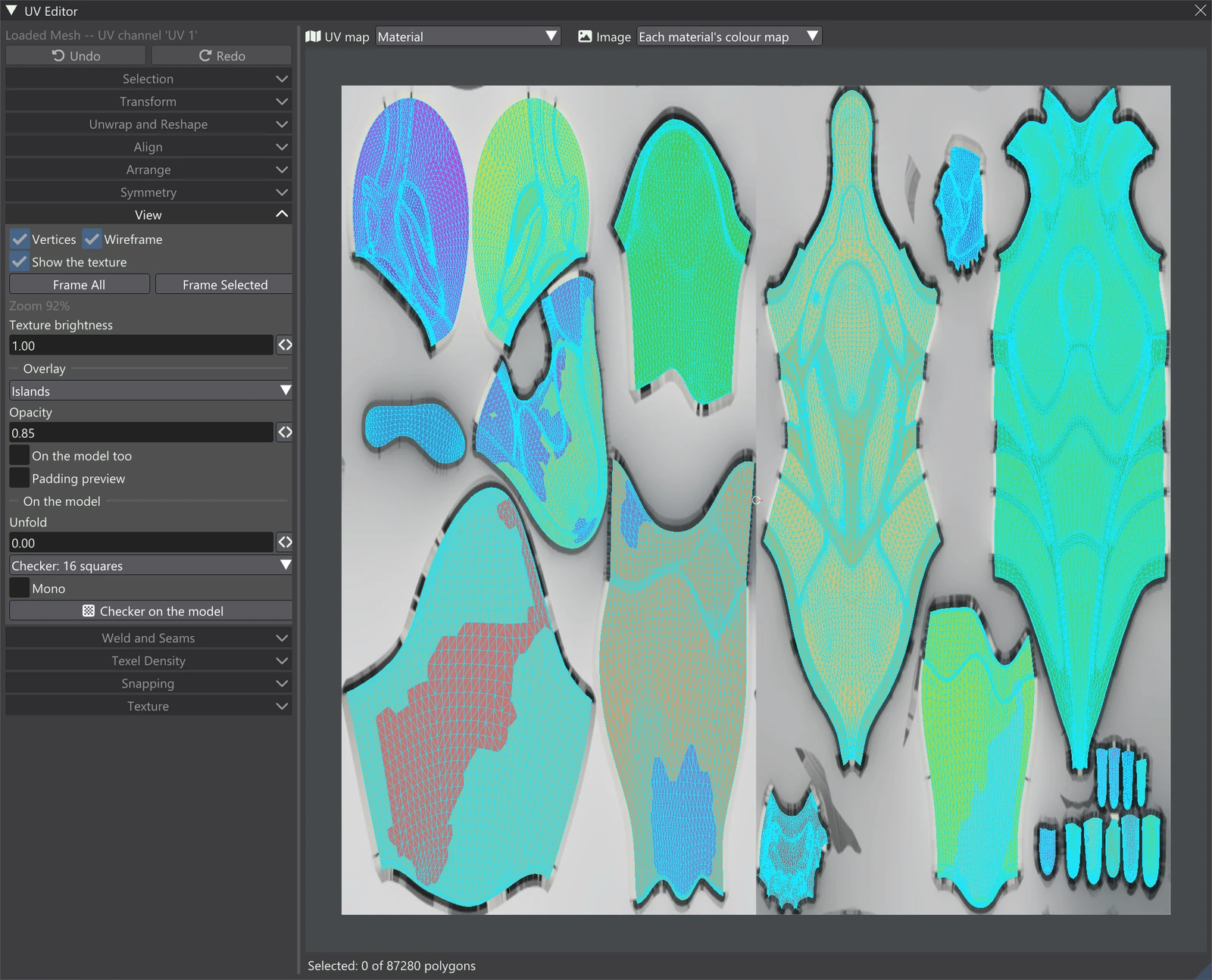
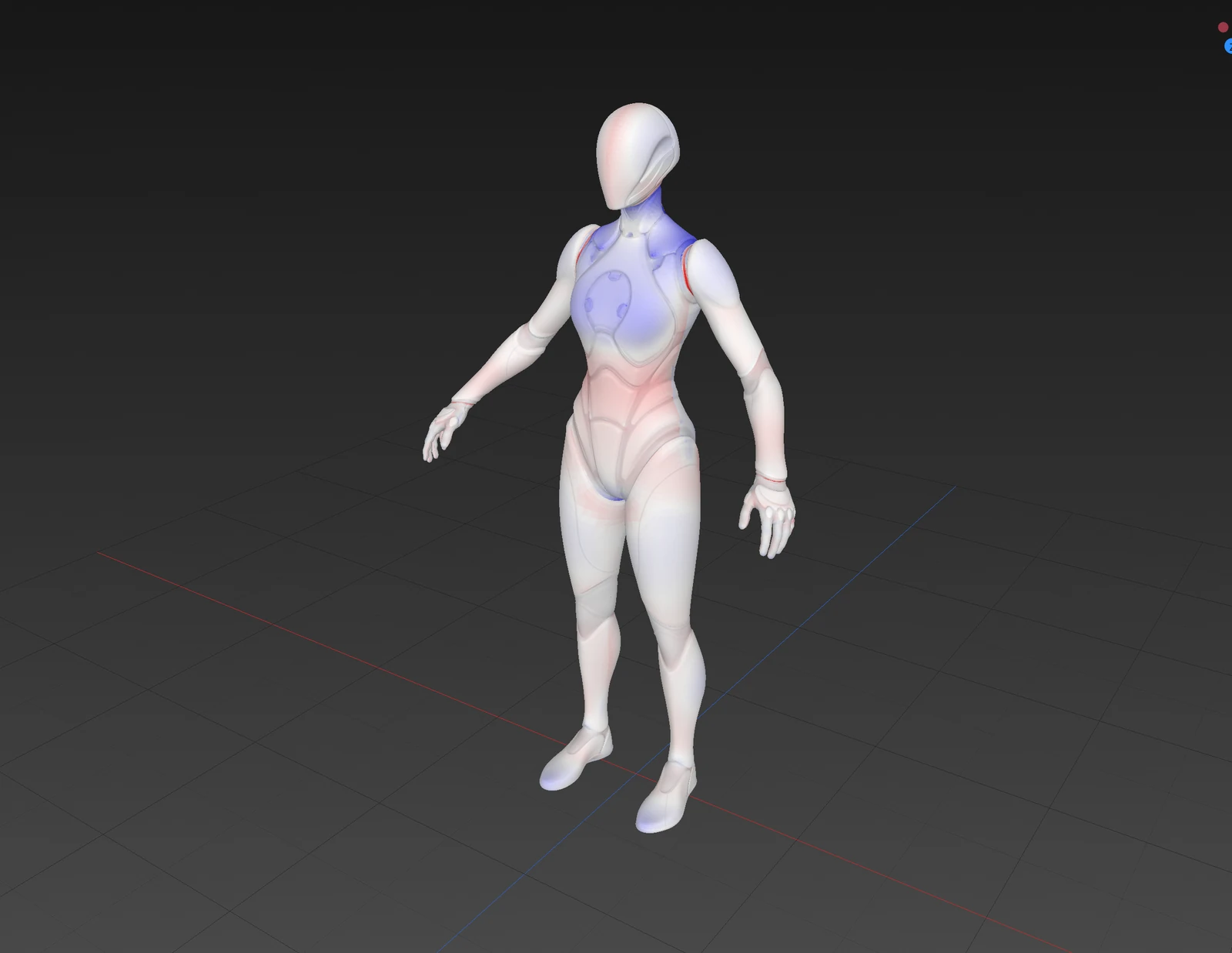
The overlays are views only. They are worked out when the layout settles — after a tool runs or a drag ends, never while you drag — so the colours can lag a moving selection until you let go. On the model they are shown only while the UV Editor is open; close it and the model looks as it did.
Two things are worth knowing when reading the colours:
- The overlay on the model is painted into the layout's own texels. Where islands are stacked on one another (two mirrored halves sharing one set of texels, for example), the model shows one island's colour on both of them.
- With the Material dropdown showing one material, the canvas colours only that material's faces, but the legend's range is measured over every face of the mesh.
Padding preview
Padding preview grows every island outward by the padding you set beside it (1 to 64 texels, as wide across as down even on a non-square image) and draws the grown band around it. Where two islands' bands meet or overlap, their gutters would run into each other: a bake or a mip-mapped texture would bleed one island's colours into the other. Use it to check spacing before baking, or after moving islands closer together. The band follows a drag live.
On the model
These controls change what the 3D view shows of the layout.
| Control | What it does |
|---|---|
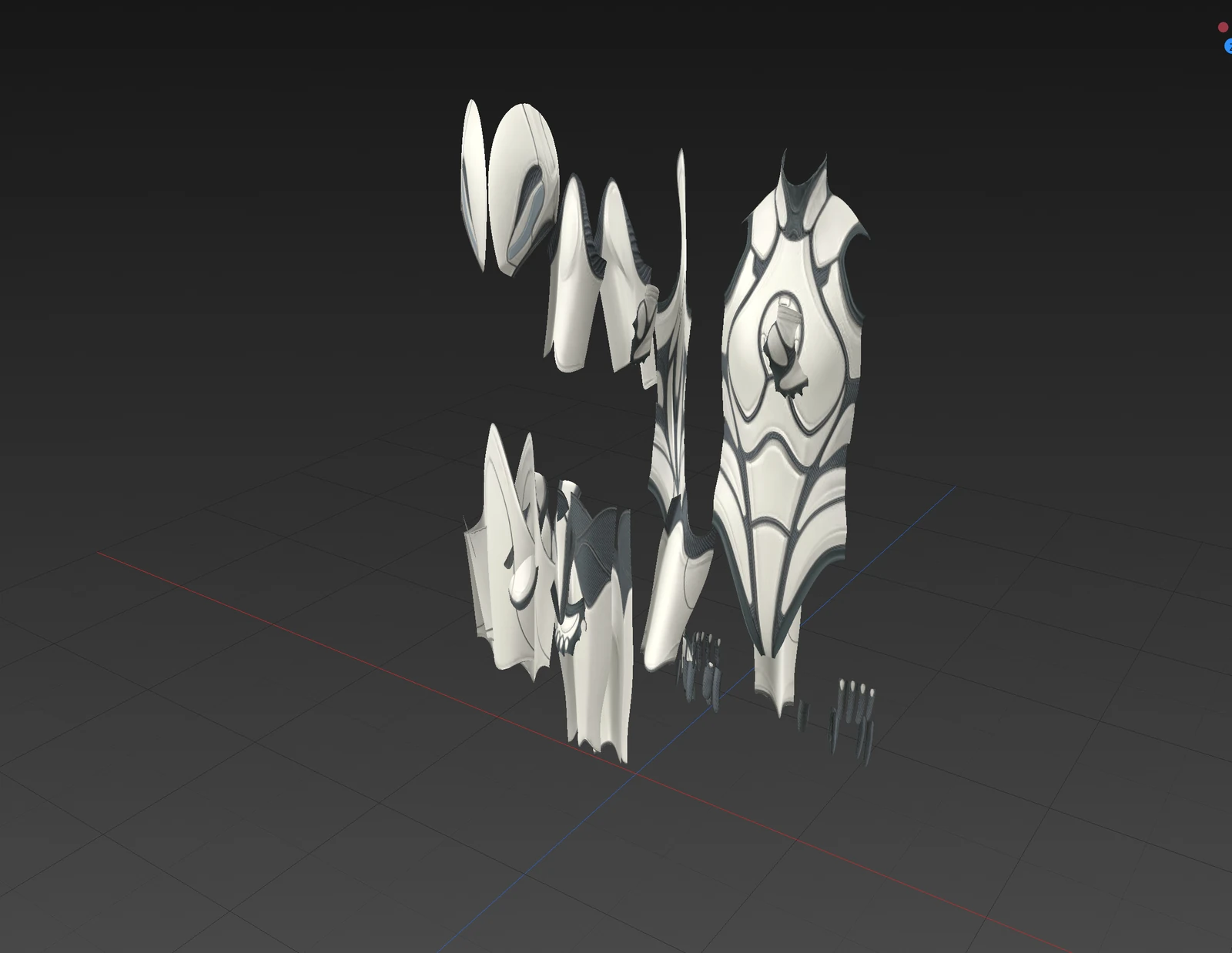
| Unfold | Morph the model in the 3D view into its UV layout. At 0 the model is as it is; at 1 the layout lies flat, centred on the model and as large as the model's biggest side, each island where the canvas shows it. In between, every face travels part way. It is a view only — nothing changes — and it is not saved: it is back at 0 the next time you start Vertexix. While unfolding, faces are drawn from both sides (mirrored islands lie face down) and shadows are off. |
| Checker size | Checker: 8 / 16 / 32 / 64 squares: how fine the UV checker is, on the model and on the canvas. |
| Mono | The checker in grey, without its colour tint. |
| Checker on the model | A toggle: the first click turns on the 3D view's UV display with the checker as its image; a second click turns it off again. The button shows as pressed while it is on. |
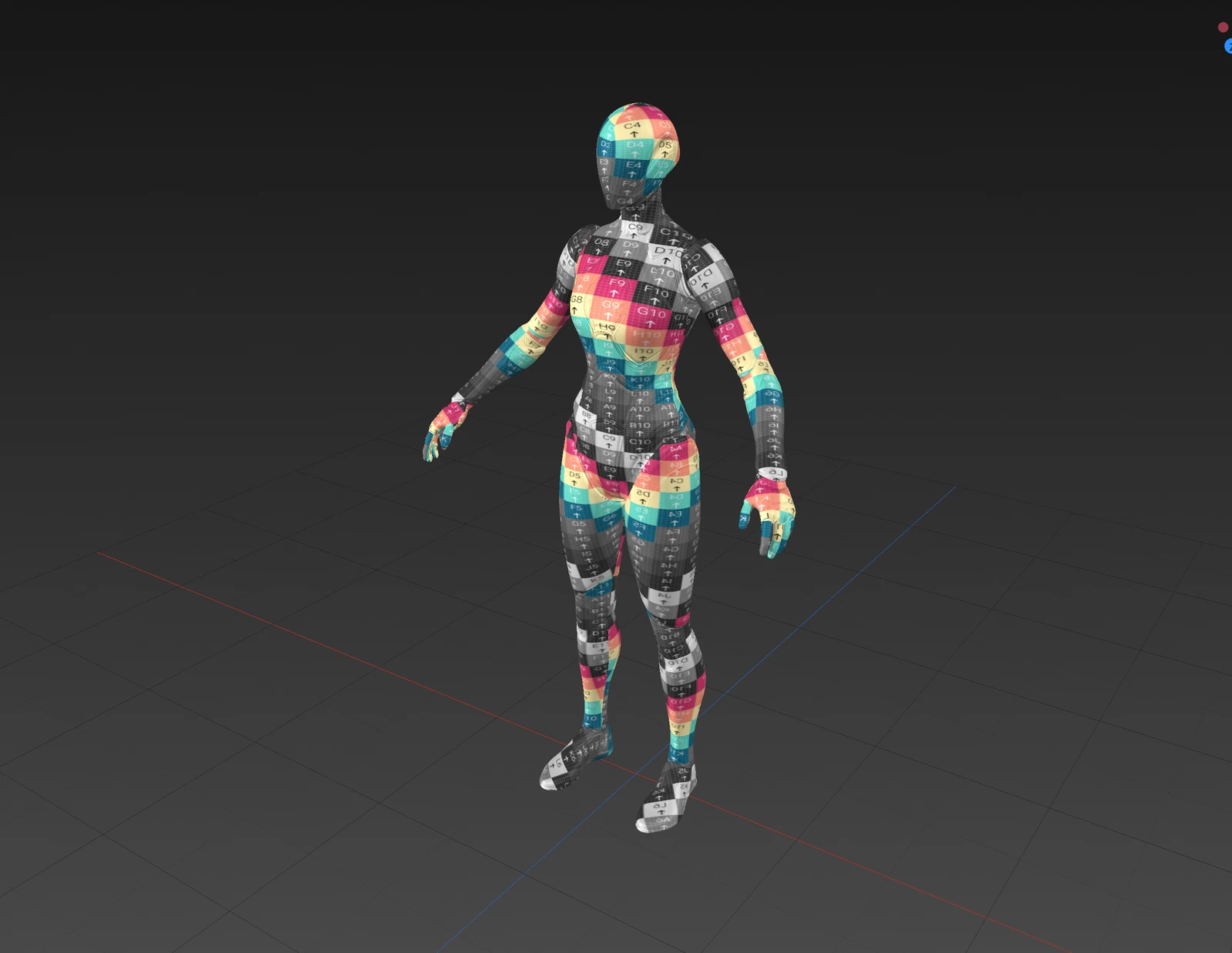
The checker is the quickest everyday check of a layout. Squares that are larger on one part of the model than another mean that part gets fewer texels; squares squashed into rectangles mean stretch; letters running the wrong way mean a turned or mirrored island.