
Symmetry
The Symmetry accordion makes a layout symmetric. Symmetrize works from the model: it copies one side of the model's UVs onto the other, mirrored. Snap to Symmetry works in UV space alone: it snaps UVs that are nearly mirror images of each other onto exact ones. Editing is for Regular and up; in Free and Light the buttons are disabled and their tooltip says why.
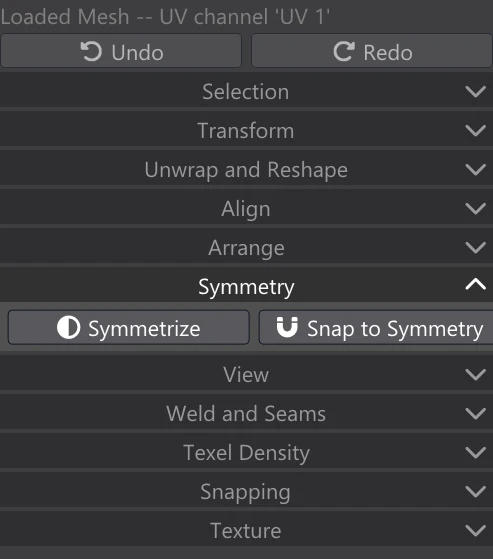
Both tools need a selection and act only on the selected UVs. Each runs in the background, with a progress bar and a Cancel button in the column (Cancel leaves the layout as it was), and is one undo step. The texture follows the side that moved. Their settings appear in the Adjust box at the bottom of the column, and each tool starts from the settings you last gave it there, for the rest of the session.
Symmetrize
Makes the selection's UVs symmetric from the model's own symmetry. For each selected UV on one side of the model's mirror plane, Vertexix finds its partner — the point at the mirror position on the other side — and gives it the partner's UV, reflected across a line in UV. Use it on a symmetric model when one side's layout is good and the other has been spoiled, or to make a hand-made layout exactly symmetric.
What it does depends on how the islands lie:
- An island across the middle (one that reaches both sides, such as a torso) is made symmetric in itself: the copied side mirrors the other, and its points on the plane are put onto the mirror line.
- Two halves (islands on one side only, each with its seam on the middle, and their partners on the other side) take each other's shape: the target half becomes the mirror image of the source half, seam points included. The halves stay separate islands — they are never welded together — and with the default line each half stays where it was.
- A slit — the middle seam opened inside an island, so one point on the plane has a UV on each side of the opening — keeps its opening: its two UVs are made mirror images of each other, rather than closed onto the line.
- Where a 3D point has several UVs (on a seam), the partner's matching UV is found by its neighbours, so the two sides of the model need not be triangulated alike.
The result is stable: running Symmetrize a second time on the same selection moves nothing. It needs the model's 3D points (Symmetrize needs the model's 3D points.).
| Setting | What it does |
|---|---|
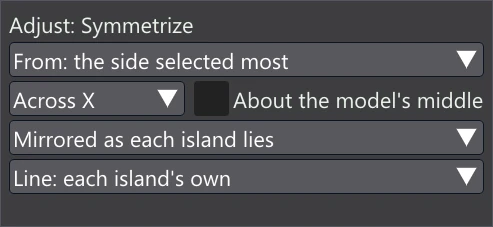
| From: | Which side of the model is copied; its mirror partners on the other side take its UVs, reflected. the - side (negative X, Y or Z), the + side, or the side selected most — the side holding more of the selection, so you can simply select the good side (and its partners) and run it. |
| Across X / Y / Z | The model's mirror plane. Across X (left and right) is the usual one. |
| About the model's middle | On: the mirror plane runs through the middle of the model's bounds. Off: through 0, the model's origin. Turn it on for a model that is symmetric but not centred on its origin. |
| Mirrored in U / in V / as each island lies | Which way the UVs are reflected. in U: left and right in the texture. in V: up and down. as each island lies (the default): each island across the line square to the way the model's mirror axis runs on that island, so an island laid out sideways mirrors in V by itself. |
| Line: | Where the UV mirror line runs. each island's own (the default): an island across the model's middle is mirrored about its own middle; a pair of islands about a line halfway between them, so the copy lands where the other one is. Or the tile's middle, the 2D cursor (Shift+right-click on the canvas), or the selection's middle. |
To repair a scrambled side, select both sides of the model's layout (or everything), leave From on the side you trust, and run Symmetrize. The defaults keep every island where it lies and only fix its shape.
Snap to Symmetry
Works in UV space alone, without the model. Pick a reference side and a line: each selected UV on the other side of the line snaps exactly onto the mirror image of the nearest selected UV on the reference side, if one is close enough. Selected UVs that lie close to the line go onto it. The reference side never moves. Use it to tidy a layout that is already nearly symmetric, such as an island across the middle that was laid out by hand. If no UV is near enough to a mirror image, it says No selected UV has a mirror image on the reference side within the snap distance.
| Setting | What it does |
|---|---|
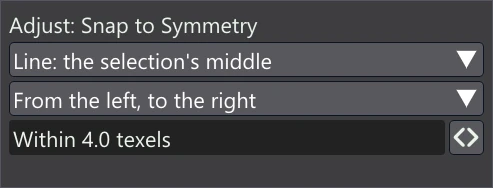
| Line: | Where the mirror line runs: the tile's middle, the 2D cursor or the selection's middle. |
| Direction | From the reference side to the side that snaps, across a line square to it: From the left, to the right, From the right, to the left, From below, upward, From above, downward, or one of the four diagonals (From lower left, up right, From upper right, down left, From lower right, up left, From upper left, down right). The side it comes from stays; the UVs on the far side snap to its mirror image. |
| Within N texels | How far a UV may be from its mirror image (or from the line) and still be snapped, from 0.5 to 64 texels. Raise it to catch rougher layouts; keep it small so unrelated UVs are not pulled together. |