
Arrange
The Arrange accordion has three groups. Vertices eases or reshapes the UVs inside islands. Islands moves, turns, sizes and stacks whole islands. Layout lays out every island afresh: packed tightly, unfolded like a box, or sorted into the parts of a character. The texture follows every change, so baked and painted textures stay on the model. Editing is for Regular and up; in Free and Light the buttons are disabled and their tooltip says why.
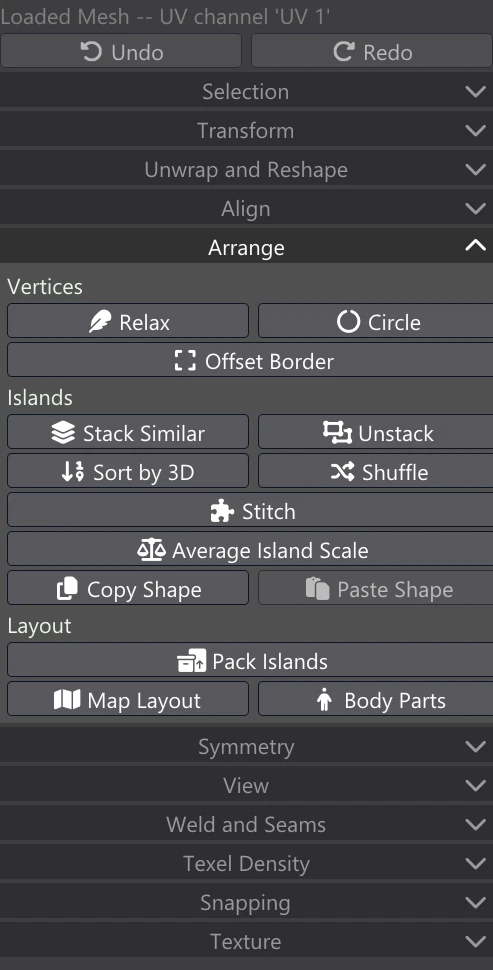
How these tools behave
- Every tool needs a selection (Select something first.). Stack Similar, Unstack, Sort by 3D, Shuffle, Copy and Paste Shape and the Layout tools work on every island the selection touches, so one selected face or UV is enough to take in its whole island.
- Each run is one undo step. Its settings then appear in the Adjust box at the bottom of the column, where changing one runs the tool again, still as one step. Every tool here except Average Island Scale starts from the settings you last gave it there, for the rest of the session.
- Most of these tools run in the background: Relax, Circle, Offset Border, Stack Similar, Unstack, Sort by 3D, Shuffle, Paste Shape, Pack Islands, Map Layout and Body Parts. While one runs, the column shows its progress and a Cancel button; Cancel leaves the layout as it was. Other edits wait until it finishes.
- The island tools work on each material's islands apart: every material has its own texture, so an island never leaves its material's tile.
- Distances in texels are texels of the selection's image (as if 1024 pixels wide when it has none).
Vertices
Relax
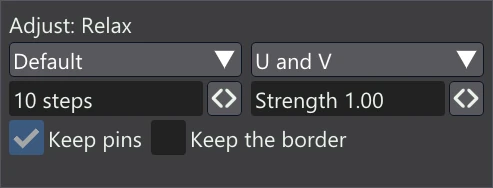
Eases the stretch out of the selection, starting from the layout as it is — never folding a face. Use it after moving UVs by hand, or on an island that is slightly pinched, when you want to keep its overall shape and place rather than unwrap it again. Selected islands or faces relax as a whole; in Vertex and Edge modes, only the selected UVs move, eased against the faces around them. Pins hold, and an island laid out mirrored stays mirrored.
| Setting | What it does |
|---|---|
| Default / Minimize Stretch | Default: each face kept as near its 3D shape as it can be (as rigid as possible). Minimize Stretch: no face squashed or stretched in any direction — stronger at evening out sizes. |
| U and V / U only / V only | Which coordinate relaxes; the other is kept. |
| N steps | How many relaxing steps (1 to 100). More steps relax further. |
| Strength | How far toward the relaxed layout the UVs go: 1 all the way. It always stops short of any fold. |
| Keep pins | Pinned UVs hold. |
| Keep the border | The border of what is relaxed holds; only the inside moves. |
Relax Brush
Relax where the brush goes. Press Relax Brush (under Circle) to turn it on: a circle follows the cursor on the canvas, and dragging eases the stretch out of the UVs under it, a little every moment, the way Relax does to a selection — never folding a face, pins holding, kept to the material on show. Radius sets the circle's size on the canvas and Strength how far each moment of the stroke goes. A whole stroke is one undo step. While the brush is on, the left button relaxes rather than selects; press Relax Brush again to turn it off.
Circle
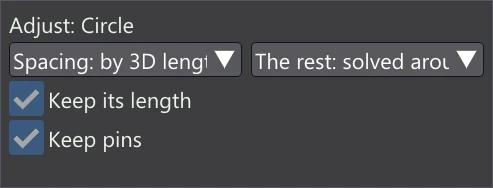
Select a closed loop of edges in Vertex or Edge mode and press Circle: the loop becomes a circle about its middle, turning the way it did, and the rest of its island follows. Use it on the ends of cylinders, eye sockets, buttons and other round openings. Selecting a whole island's outline with Select Border and then pressing Circle rounds the island's border. Without a closed loop it says Select a closed loop of edges first (Vertex or Edge mode). As with the Shape tools, an island whose new shape would fold is left exactly as it was.
| Setting | What it does |
|---|---|
| Spacing | by 3D length: each UV as far round the circle as its point is along the 3D edges. even: equal steps. as it lies: as far round as it is now. |
| The rest | solved around it: the rest of the island is flattened again with the circle held, so it follows without folding. left as it is: only the loop's UVs move. |
| Keep its length | On: the circle is as long as the loop was. Off: its radius is the loop's average distance from its middle. |
| Keep pins | Pinned UVs are not moved. |
Offset Border
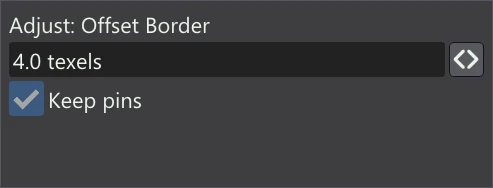
Moves the border of every island the selection touches outward by a few texels (or inward, with a negative amount) — room for padding, or for a seam's colour bleed. Sharp corners are mitred, the border never moves past a fold, and pins hold.
| Setting | What it does |
|---|---|
| N texels | How far the border moves, from −32 to 32 texels of the selection's image: out, or in when negative. |
| Keep pins | Pinned UVs are not moved. |
Islands
These tools move, turn and size whole islands; they never change an island's shape (except Paste Shape, which gives it another island's).
Stack Similar
Lays every island of the same shape as a selected one exactly onto it — turned, or mirrored — so they share its texels. Use it for repeated parts (bolts, rivets, the two halves of a mirrored model) so they use one area of texture between them. To count as alike, two islands must have the same mesh layout (as many faces and points) and the same shape, at any turn. Islands that match closely are laid on point for point, so they stay a stack when packed later.
After stacking, the stacked islands show the texture of the island they now lie on: their own texture is not carried along. An island is never stacked onto one it shares 3D points with (two halves of one surface meeting at a seam), because that would fold the surface over itself. If nothing matches, it says No island like the selected one(s) was found: the same mesh layout and shape, any turn.
| Setting | What it does |
|---|---|
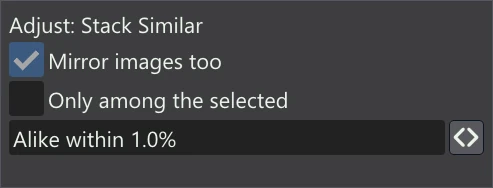
| Mirror images too | An island that is a mirror image of the selected one is stacked onto it as well; its UVs then wind the other way (mirrored halves sharing one texture). |
| Only among the selected | On: only the selected islands are stacked, onto one another. Off: every island like a selected one is stacked onto it. |
| Alike within | How far two shapes may differ and still be stacked, as a share of the island's size (0.1 to 20%). Raise it for parts that are nearly, but not exactly, the same. |
Unstack
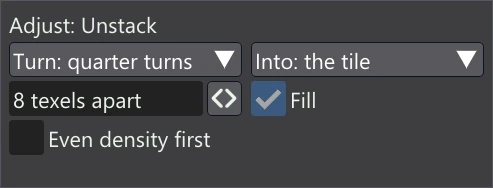
Packs the islands the selection touches with every stack taken apart, so each island gets texels of its own. The shared texture is copied to each, so the model looks the same afterwards — but now each copy can be painted or baked differently. Its settings are Pack Islands' (below), without Keep stacks.
Sort by 3D
Lines the selected islands up in the order they have on the model — along X, Y or Z, or round it — as a row, a column or a grid, starting from the lower left of the selection. Use it to find your way round a layout: islands that are neighbours on the model end up neighbours in UV. It needs two islands or more.
| Setting | What it does |
|---|---|
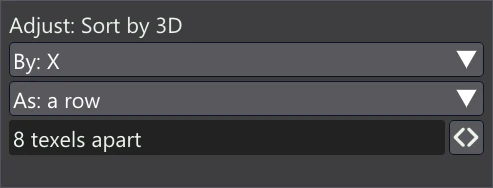
| By: | The 3D order the islands follow: their centres along X, Y or Z, or around the vertical axis (round the model as seen from above). |
| As: | a row (along U), a column (along V) or a grid. A grid's rows go by height, the highest on top, and along each row by the order chosen. |
| N texels apart | The gap between islands. |
Shuffle
Deals the selected islands' places out again at random, none left where it was. With two islands selected, they simply swap places. It needs two islands or more.
| Setting | What it does |
|---|---|
| Shuffle N | Which shuffle (1 to 999): another number, another arrangement. The same number always gives the same one. Two islands always simply swap. |
Stitch
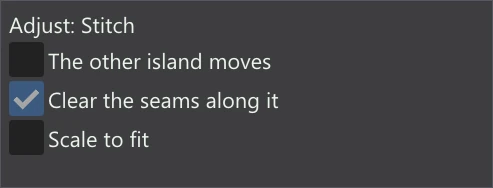
Select an island's edge along a seam — where its other side is on another island — and press Stitch: the island turns and moves onto the island on the seam's other side, and the two are welded together along it into one island. The island the selection is mostly on is the one that moves (unless you change that in Adjust); the other island is the one sharing the most of the selected seam. Without such an edge selected it says Select an island's edge along a seam: its other side is on another island.
| Setting | What it does |
|---|---|
| The other island moves | Off: the selected island turns and moves onto its neighbour. On: the neighbour comes to it. |
| Clear the seams along it | The Generated Mesh's marked seams on the stitched edges are cleared, so a new UV map keeps them joined. The Loaded Mesh has no marked seams, so this does nothing there. |
| Scale to fit | The moving island is scaled as well as turned and moved, so both sides of the seam are the same length. |
Average Island Scale
Scales each selected island so all of them have the same texel density — the same amount of texture for the same amount of surface — while keeping the space they take up together. Each island is scaled about its own centre. Use it before packing, so a small part does not get more texture detail than a large one. It works on selected faces or islands (Face or Island mode). To set an exact density, use Texel Density.
Copy Shape and Paste Shape
Copy Shape remembers one selected island's UV shape (Select one island to copy its shape.). It changes nothing, so it works in every edition. Paste Shape then gives the selected islands that shape, each where it is (centred on its own place, at the copied size). It only works on islands with the same mesh layout as the copied one — as many faces, in the same order — such as a copy of that part, or its mirror image. Use it to give repeated parts an identical layout without stacking them on one another. Until a shape has been copied, Paste Shape is greyed out.
Layout
Pack Islands
Lays out every island the selection touches afresh, none overlapping, filling the tile each material is in. Use it after unwrapping or editing islands, to use the texture space well and leave room between islands. Nothing is unwrapped: each island keeps exactly its own shape, every island of a material is scaled by the same amount, and islands are never mirrored. Each material is packed apart, in the UDIM tile its islands are in. Islands lying exactly on one another (a stack, from Stack Similar or a mirrored layout) stay stacked.
After a pack, the texture follows each island to its new place, and the gaps between islands are filled from the islands' own edges, so no colours of the old layout are left showing between them.
| Setting | What it does |
|---|---|
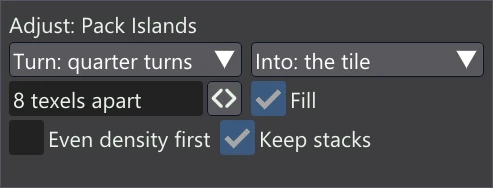
| Turn: | How islands are turned before packing (never mirrored). never: each keeps its angle, for textures with a direction such as fabric weave or wood grain. quarter turns: each island is stood wider than tall. any angle: each island is first squared to its outline, its tightest box. |
| Into: | the tile: each material's islands fill the UDIM tile they are in. the selection's bounds: the islands are packed into the box they took up before, leaving the rest of the tile alone. |
| N texels apart | The space between islands (0 to 64), in texels of the selection's image, so their colours do not bleed into each other when the texture is filtered or mip-mapped. On an image that is not square, the gap is at least that many texels both ways. More padding keeps distant views cleaner; less fits more texture in. |
| Fill | On: the islands are scaled up or down to fill the target. Off: every island keeps its size (they may then not fit the tile). |
| Even density first | Every island is first scaled to the same texel density (as Average Island Scale), then packed. |
| Keep stacks | On: islands lying exactly on one another (sharing texels) are packed as one. Off: as Unstack — each gets texels of its own. |
If the packer cannot place the islands, nothing changes and it says The islands could not be packed.
Map Layout
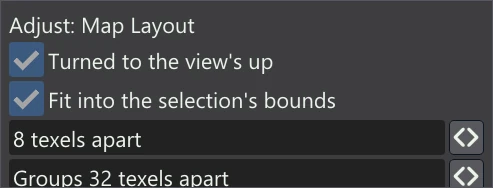
Lays the islands out as the model unfolds: each island goes with the view it faces most — front, right, back, left, top or bottom — placed where it is in that view, and the views are laid round the front like an opened box (right and then back to its right, left to its left, top above, bottom below). Islands in a view are pushed apart until none overlaps. It reads the model as standing with Y up and its front facing +Z, as Vertexix imports models. Use it to get a layout you can read at a glance, for hand painting or for finding parts.
| Setting | What it does |
|---|---|
| Turned to the view's up | Each island is turned so that up in its view (the figure's up; for the top and the bottom views, its back) is up in the UVs. |
| Fit into the selection's bounds | The whole layout is scaled into the box the islands took up before. Off: every island keeps its size. |
| N texels apart | The gap between islands within a view. |
| Groups N texels apart | The gap between the views. |
Body Parts
Arranges a character's islands by part — hair, hands, feet, small bits, the body — each part's islands turned their own way up and lined up, and the parts' blocks laid out like lines of text. Like Map Layout it reads the model as a standing figure, Y up and facing +Z. Each island is moved whole and on its own, so mirrored stacks (a left and a right hand sharing texels) come apart, as with Unstack.
With Auto, each island is named by where its middle is on the figure:
| Part | Which islands | How they are laid out |
|---|---|---|
| Front hair, back hair | Islands in the top of the figure (the head), in front of or behind the head's middle. | The figure's up is up; in order left to right as seen. |
| Left hand, right hand | Islands in the outer quarter of the figure's width (hands at the sides, in a T or an A pose). | Turned with the fingers pointing outward. |
| Left foot, right foot | Islands at the bottom of the figure. | Turned with the toes pointing forward. |
| Small bits | Very small islands. | Always in a grid. |
| Body | Everything else. | A grid by height, the highest on top. |
| Setting | What it does |
|---|---|
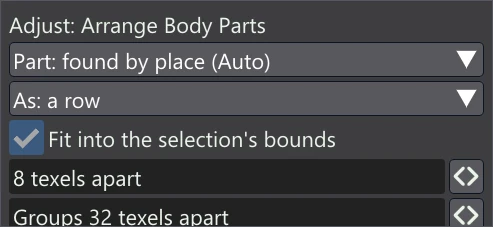
| Part: | found by place (Auto) names each island as above. Or choose one part — front hair, back hair, left hand, right hand, left foot, right foot, small bits or body — and every selected island is arranged as that part. Use a chosen part when Auto names something wrongly: select those islands and run it again with the right part. |
| As: | How each part's islands are lined up: a row (wrapped onto more rows when long), a column or a grid. Small bits are always in a grid. |
| Fit into the selection's bounds | The whole layout is scaled into the box the islands took up before. Off: every island keeps its size. |
| N texels apart | The gap between islands within a part. |
| Groups N texels apart | The gap between the parts' blocks. |