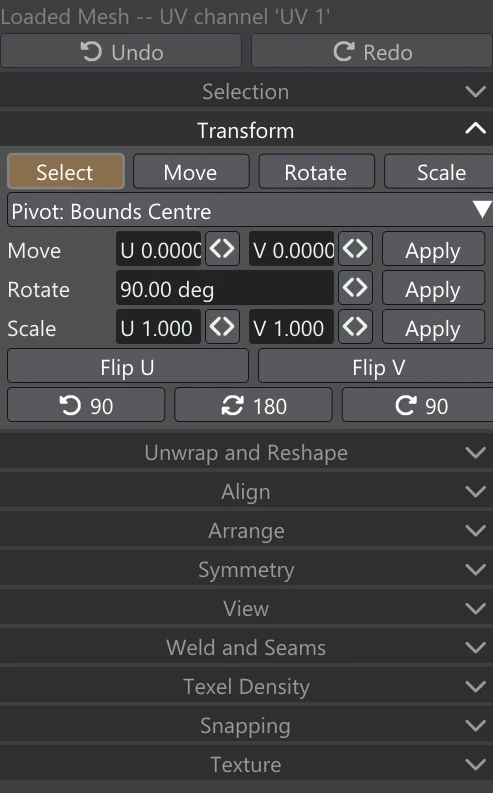
Transform
The Transform accordion moves, turns, scales and flips the selection: by dragging handles on the canvas, or by typing exact values. Each change is one undo step, and with Texture follows the island on, the texture moves with the UVs. Changing the layout is a Regular and up feature: on Free and Light the controls are disabled and a note under them names the edition that unlocks them.
Select, Move, Rotate, Scale
The four buttons choose what the canvas offers for dragging. The lit one is in use.
| Tool | What it does |
|---|---|
| Select | Click and drag to select; no handles. |
| Move | Handles to move the selection: the red arrow along U, the green arrow along V, the square in the middle freely. Key: G. |
| Rotate | A ring to turn the selection about the pivot. Key: R. |
| Scale | Handles to scale the selection: the red square along U, the green square along V, the square in the middle evenly. Key: S. |
The keys do not switch tools: they start a move, turn or scale that follows the mouse, whichever tool is chosen. See Dragging on the canvas.
Pivot
What a turn, a scale or a flip goes about.
| Pivot | What it is |
|---|---|
| Pivot: Bounds Centre | The middle of the box around the selection. |
| Pivot: Median | The average of the selection's points. UV vertices stacked on the same spot count once. |
| Pivot: 2D Cursor | The 2D cursor, which you place with Shift+right-click on the canvas. |
| Pivot: Each Island | Every island turns, scales or flips about its own centre (the middle of its own box), all at once. |
The transform handles on the canvas are drawn at the pivot.
Typed values: Move, Rotate, Scale
Three rows for exact changes. Type a value, then press that row's Apply. The values stay in the fields, so you can press Apply again to repeat the same step. The button beside each field changes its value by dragging, in the style chosen under Numerical sliders in Settings › Interface (the <> button shown is the Lightwave3D style: drag it left or right).
| Row | What Apply does |
|---|---|
| Move U, V | Moves the selection by this much, in UV units: 1 is the width (or height) of the whole texture. With a texture known, the tooltip gives the same move in texels. |
| Rotate | Turns the selection by this many degrees, counter-clockwise in the texture, about the pivot. 90 by default. |
| Scale U, V | Scales the selection by these factors about the pivot: 1 leaves it as it is, 2 doubles it, a different U and V stretches it. |
The settings in Snapping apply to these as well (a move with Snap to whole texels on lands on whole texels, for example). With nothing selected, Apply does nothing and the status line asks you to select something first.
Flip U, Flip V and quarter turns
| Button | What it does |
|---|---|
| Flip U | Mirror the selection left to right about the pivot. |
| Flip V | Mirror the selection top to bottom about the pivot. |
| ↺ 90 | A quarter turn counter-clockwise. |
| 180 | A half turn. |
| ↻ 90 | A quarter turn clockwise. |
With Pivot: Each Island, every selected island flips or turns about its own centre — the way to turn a row of islands each in place.
On a texture that is not square, turns happen in texels: an island keeps its shape in pixels instead of shearing.
Dragging on the canvas
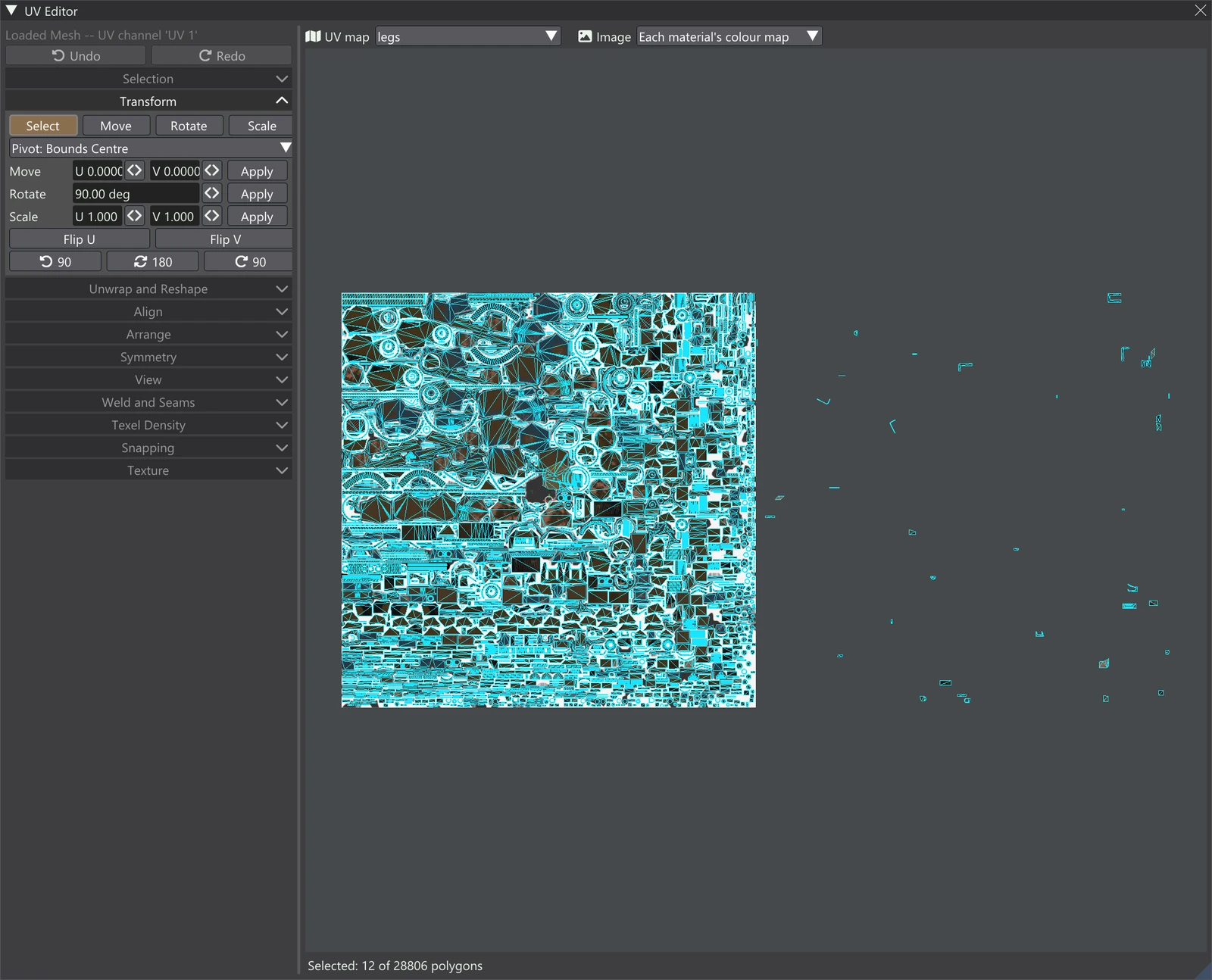
- Handles (Move, Rotate or Scale tool, something selected): drag a handle; the change applies when you let go.
- G / R / S (mouse over the canvas, something selected): the move, turn or scale follows the mouse. X or Y locks a move or a scale to one axis; a click or Enter applies; a right-click or Esc cancels.
- Holding Ctrl during either swaps step snapping on or off.
What moves is the selection plus whatever Sticky brings along with it. The full details are on Canvas, Map Bar & Shortcuts. For moves in fixed steps, on whole texels, or kept inside their tile, see Snapping.