Animation
Import a rigged, skinned model and Vertexix keeps the skeleton in the picture through retopology, rather than forcing a re-rig from scratch.
Every animation package treats bones a little differently, so not everything imports cleanly. The common symptom is a figure lying down while its skeleton stands upright. Try Stand Up in the playback panel first; failing that, Ctrl+cursor down can rotate the mesh into position by hand.
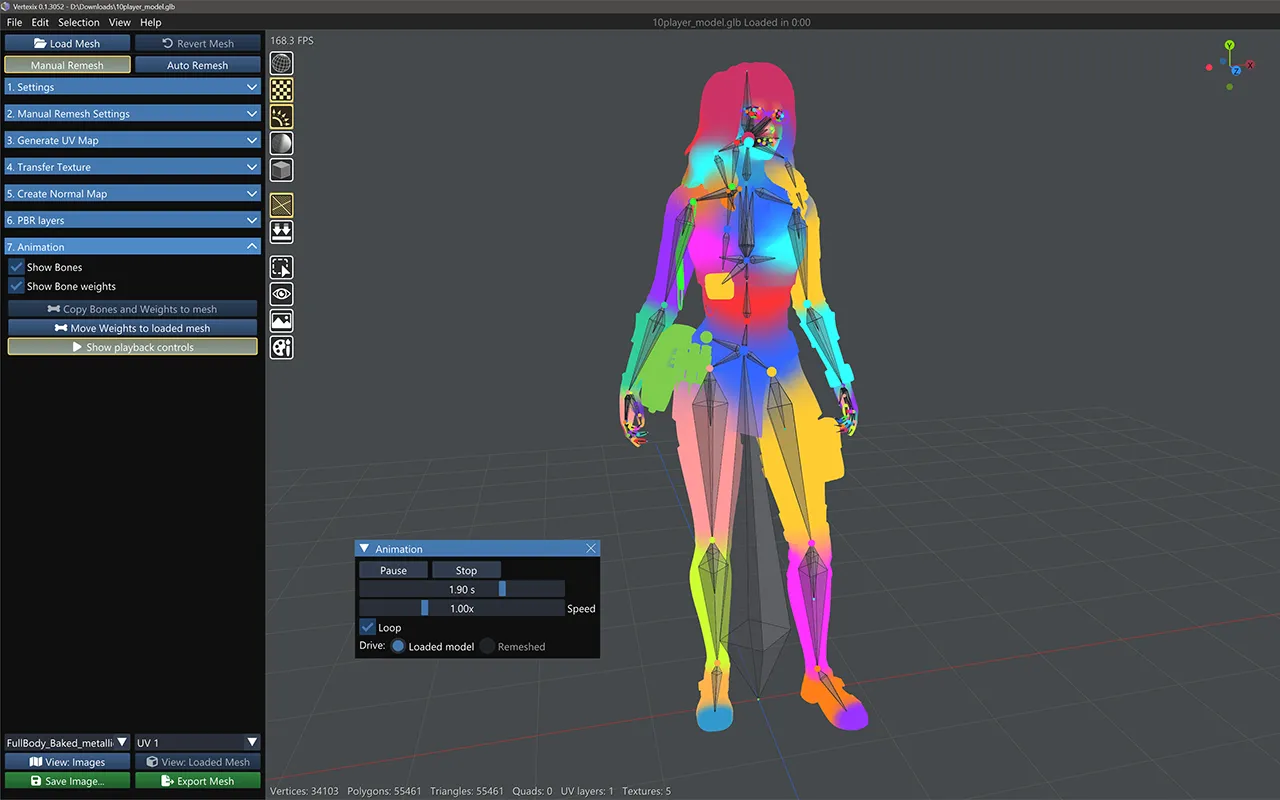
Show Bones & Show Bone Weights
Two checkboxes mirroring the same overlays in the View menu — an armature overlay, and a color-by-bone-influence overlay on the skin.
Copy Bones and Weights to mesh & Move Weights to loaded mesh
- Copy Bones and Weights to mesh (requires a created topology) — transfers the loaded model's skeleton and skin weights onto the generated mesh by nearest surface point, so it can be played back and exported rigged.
- Move Weights to loaded mesh (requires a loaded mesh) — transfers skin weights onto the loaded model's own vertices instead, then discards the separately-extracted weight copy (the skeleton itself stays available for later use).
Playback
Show playback controls opens the animation playback and scrub panel.
Stand Up puts the mesh back onto its own skeleton's bind pose. Scans and sculpts frequently arrive lying down, mis-scaled or facing the wrong way relative to the rig they carry; this is the quickest way to see what you actually have before you commit to anything.
Play a clip, stop it, loop it, or scrub the timeline by hand. Drive chooses which mesh the animation moves — the loaded model or the retopologized one — which is how you check that the new topology deforms as well as the original did before you export it.
Controls
- Ctrl+cursor keys with only Show Bones selected rotates the bones.
- Ctrl+cursor keys with only Show Bone weights selected rotates the object weight map.
- Ctrl+cursor keys with nothing selected rotates the mesh.