
Viewport Navigation & Status Bar
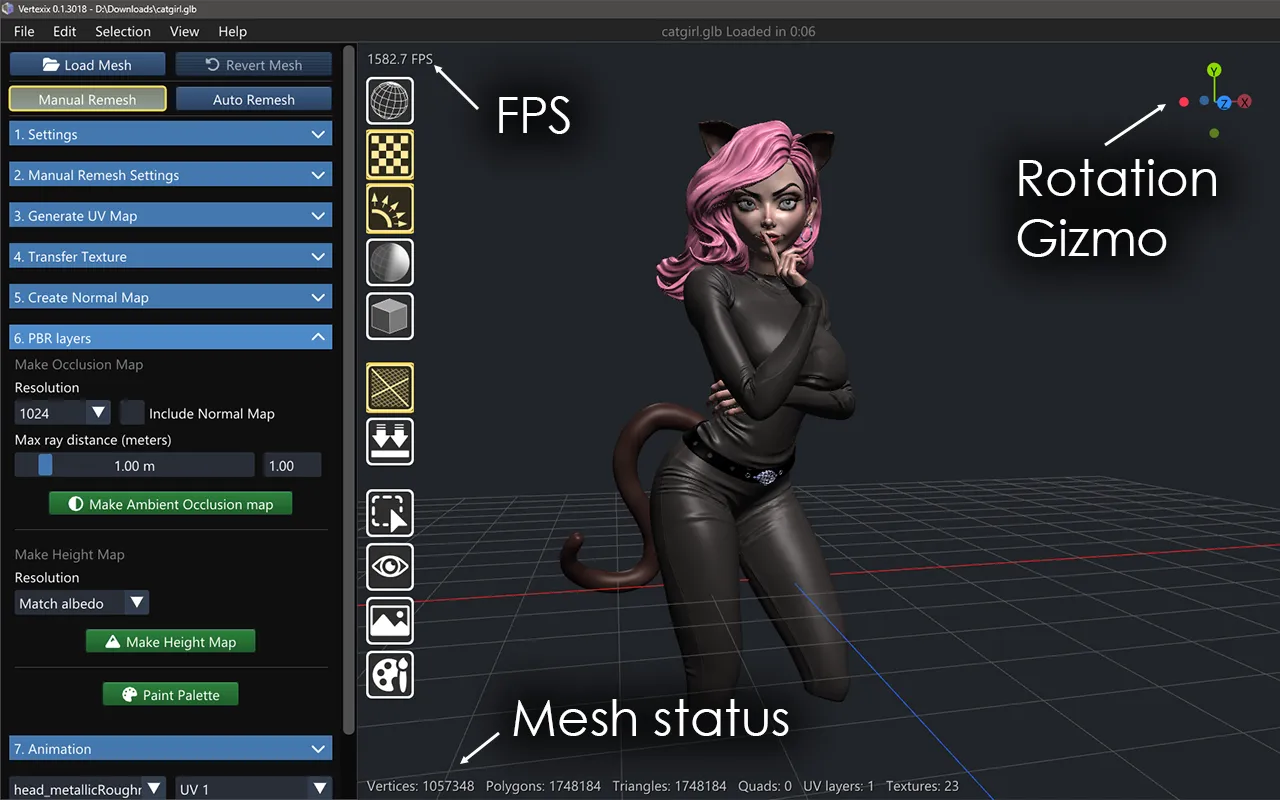
Viewport navigation
Orbit, pan and zoom work the way most 3D tools expect — drag to orbit, a modifier-held drag (or middle mouse) to pan, and the scroll wheel to zoom. Camera framing follows whatever's currently selected or isolated, and the View All shortcut resets to frame everything currently on screen. View > Reset View goes further: every view back to its starting angle, the scene framed, and the clipping distance measured again.
Ctrl+right-click a polygon to swing the camera around until that polygon faces it head-on — the view rotates to look straight down the clicked polygon's own flat normal, and the point you clicked moves to the middle of the view (it becomes the center the view orbits around; the distance stays). It works in every mode, on both meshes and while the Quad-Patcher is open, and is the fastest way to square up on a surface before painting a decal, placing a stencil, or inspecting a bake.
FPS overlay
A small frame-rate counter sits in the top-left corner of the viewport, useful for judging whether a dense mesh or a heavy render mode (PBR View with image-based lighting, for instance) is affecting interactivity.
Status bar
The bottom of the window reports live counts for whichever mesh is on screen: Vertices, Polygons, Triangles, Quads, UV layers, Textures, and — once something is selected — a Selected count. These numbers are the fastest way to confirm an operation actually did what you expected: a remesh that quietly produced zero quads, or a selection that didn't grow the way you thought it would.