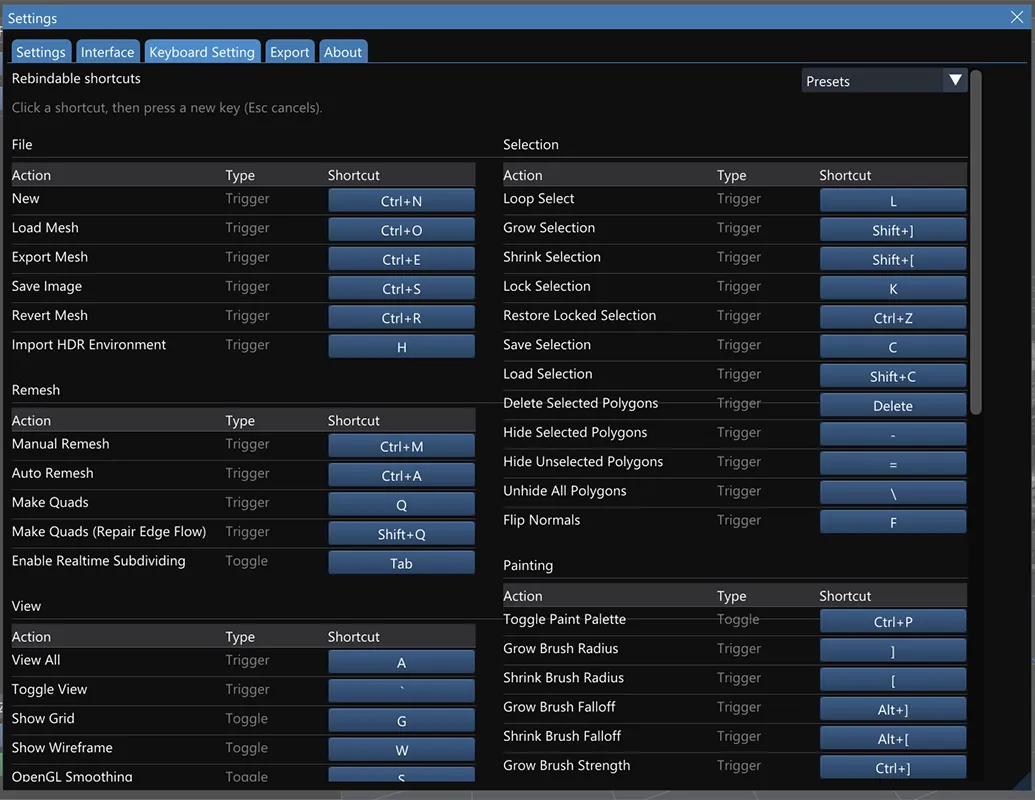
Most keyboard shortcuts in Vertexix can be redefined in Settings
> Keyboard Setting; the keys below are the defaults. The groups match the Keyboard Setting tab and the
shortcuts window (?, or Help > Keyboard Shortcuts...), which shows your current
keys, including any you have rebound.
The Keyboard Shortcuts window, grouped the same way as the Keyboard Setting tab.
Some keys are deliberately shared by two actions that never apply at the same time. The Voxel keys, for
example, only act in Voxel mode, so T, H, R and Tab keep their
ordinary meaning everywhere else.
File
Action
Default key
New
Ctrl+N
Load Mesh
Ctrl+O
Reload Last Mesh
Ctrl+Shift+O
Export Mesh
Ctrl+E
Save Image
Ctrl+S
Revert Mesh
Ctrl+R
Import HDR Environment
H (not in Voxel mode)
Remesh
Action
Default key
Manual Remesh
Ctrl+M
Auto Remesh
Ctrl+A
Make Quads — pairs triangles into quads
Q
Make Quads (Repair Edge Flow) — also re-cuts kinked edge loops
Shift+Q
Enable Realtime Subdividing
Tab (not in Voxel mode)
View
Action
Default key
View All
A
Toggle View — Loaded / Generated Mesh
`
Show Grid
G
Show Wireframe
W
Cycle Wireframe Color
Shift+W (not in Voxel mode)
OpenGL Smoothing
S
Rest Mesh on Ground
Shift+G
Show Vertex Colors
V
Toggle PBR Preview
P
PBR / OpenGL Settings...
Shift+P
Toggle VSync
Shift+V
Toggle Paint/Sculpt Mode
T (not in Voxel mode)
Show Retopology Tab
R (not in Voxel mode)
Orient the mesh (fixed keys)
Action
Key
Rotate +90° about X
Ctrl+Down
Rotate −90° about X
Ctrl+Up
Rotate +90° about Y
Ctrl+Right
Rotate −90° about Y
Ctrl+Left
Textures & UV
Action
Default key
Show UV
U
Activate Normal Map
N
View Image — opens or closes the Image Viewer
I
Previous / next image (fixed)
Left / Right
Layers
These act on the selected layer in the Layers window, so
they only work while that window is open.
The brush radius, falloff and strength keys apply in the Paint and Sculpt tabs and while the Vertex Density
Paint window is open. When a selection tool is armed, or in any other mode, they give way, so ] is
Select Connected instead.
Action
Default key
Toggle Paint Palette
Ctrl+P
Grow Brush Radius / Shrink Brush Radius
] / [
Grow Brush Falloff / Shrink Brush Falloff
Alt+] / Alt+[
Grow Brush Strength / Shrink Brush Strength
Ctrl+] / Ctrl+[
Drag Brush Radius
D
Drag Brush Strength
Shift+D
Rotate Brush Left (15 deg) / Rotate Brush Right (15 deg)
Left / Right
Rotate Brush Left (1 deg) / Rotate Brush Right (1 deg)
Shift+Left / Shift+Right
Sculpting
Action
Default key
Toggle Sculpting Mode
Shift+S
With an Aligned Brush target placed, T, Y and H pick its
move, rotate and scale handles, and the arrow keys turn its pattern — note the steps are the other way
round from Painting: Left / Right turn 1°, Shift with them 15°.
Voxel
These are listed under Other in the shortcuts window and only act in Voxel mode. See
Voxel Mode.
The Bezier Pen group, listed below Other. These keys only act while a tool that
draws a bezier curve is in use; the rest of the time the key keeps its usual job. See
The Bezier Pen.