
3D Connexion and Tablet
Two accordions on the Settings tab of the Settings window (Edit > General Settings, Alt+F9), below Mouse Settings: 3D Connexion, for a 3Dconnexion 3D mouse (a SpaceMouse or SpaceNavigator), and Tablet, for the pen setup every session starts with.
3D Connexion
Vertexix reads the device itself, so it works as soon as it is plugged in — no setting to turn on, and 3Dconnexion's own driver can stay installed. The top line says whether one is connected and which; one plugged in later, or a wireless one that wakes up, is found within a second. The cap moves the view the mouse last worked in, and only while Vertexix is the window in front.
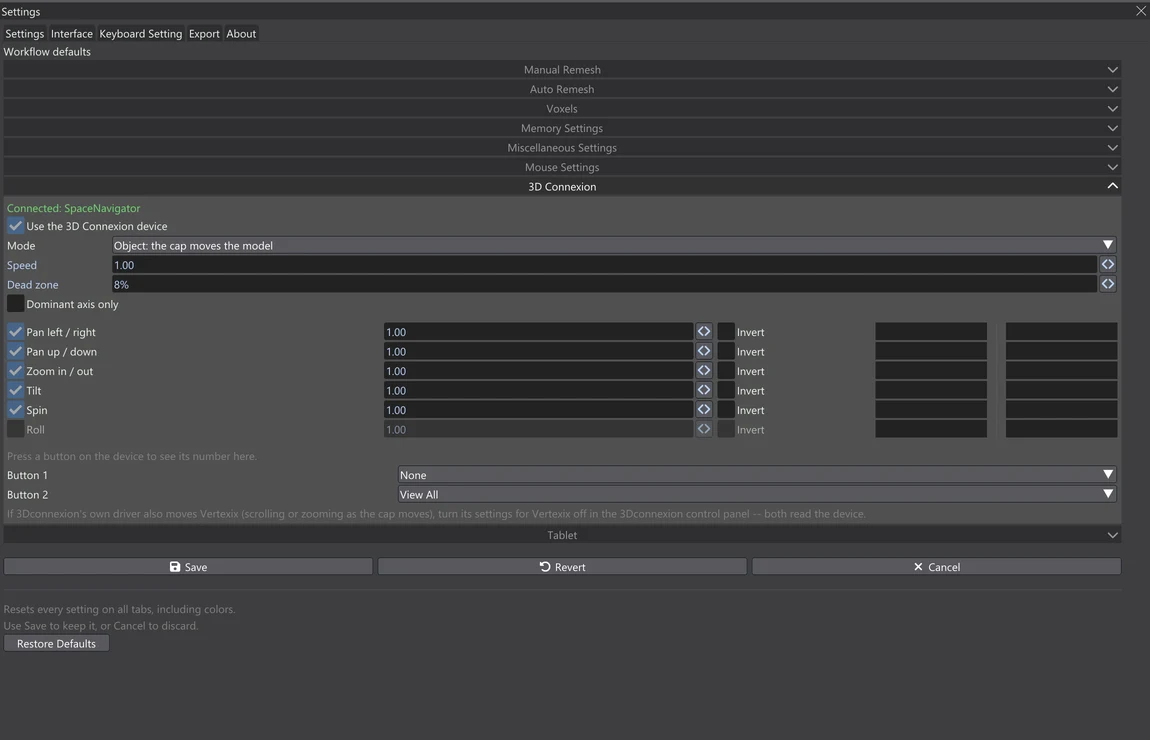
| Control | What it does | Default |
|---|---|---|
| Use the 3D Connexion device | Moves the view with the device's cap. | On |
| Mode | Object: the cap moves the model — push it right and the model goes right, twist it and the model turns (3Dconnexion's own default). Camera: the cap flies the camera, so everything goes the other way. | Object |
| Speed | How fast the view moves for a full push, every direction at once. | 1.00 |
| Dead zone | How far the cap must move before the view does, so a hand resting on it does not drift the view. Past it the motion starts gently from nothing. | 8% |
| Dominant axis only | Only the direction pushed furthest moves the view: a clean pan, turn or zoom however the hand wobbles. | Off |
| Ignore the mouse wheel while the cap moves | 3Dconnexion's own driver can turn the cap into mouse-wheel scrolling, which makes the view jump a zoom step at a time. On, any wheel input is ignored while the cap is pushed and for a moment after. | On |
The six directions
One row each: a switch to turn it off, its own speed (on top of Speed above), Invert to send it the other way, and a live bar showing what the device reads on it now — push the cap and watch the bars to see which row is which. The shaded middle of each bar is the dead zone.
| Direction | Move the cap | The view (Object mode) |
|---|---|---|
| Pan left / right | Push it left or right. | The model slides the same way. |
| Pan up / down | Lift it or press it down. | The model slides up or down. |
| Zoom in / out | Pull it toward you or push it away. | The model comes closer or goes away. |
| Tilt | Tip it forward or back. | The model tips toward you or away. |
| Spin | Twist it. | The model turns the same way about its upright. |
| Roll | Rock it sideways. | Not used: the view keeps the model upright. |
The front, side and top panes keep their angle: the cap pans and zooms them but does not turn them.
Buttons
Press a button on the device and its number shows as Last button pressed; a row for it appears, lit while the button is held. Each row's dropdown sets what the button does: the same actions a mouse button can take in Mouse Settings (Zoom In, Undo, Centre on Cursor, ...) and every keyboard shortcut. Out of the box, Button 2 — the right-hand button of the two-button devices — is View All. Buttons do nothing while the Settings window is open, so they can be tried safely.
3Dconnexion's own driver reads the device too. If it also moves Vertexix — scrolling or zooming as the cap moves — turn its settings for Vertexix off in the 3Dconnexion control panel.
Tablet
The pen setup every session starts with: the same controls as Pen Settings in the Paint and Sculpt palettes, saved with Save. Pen Settings in a palette then changes it for that session only — the next start begins from these again. A change here applies at once.
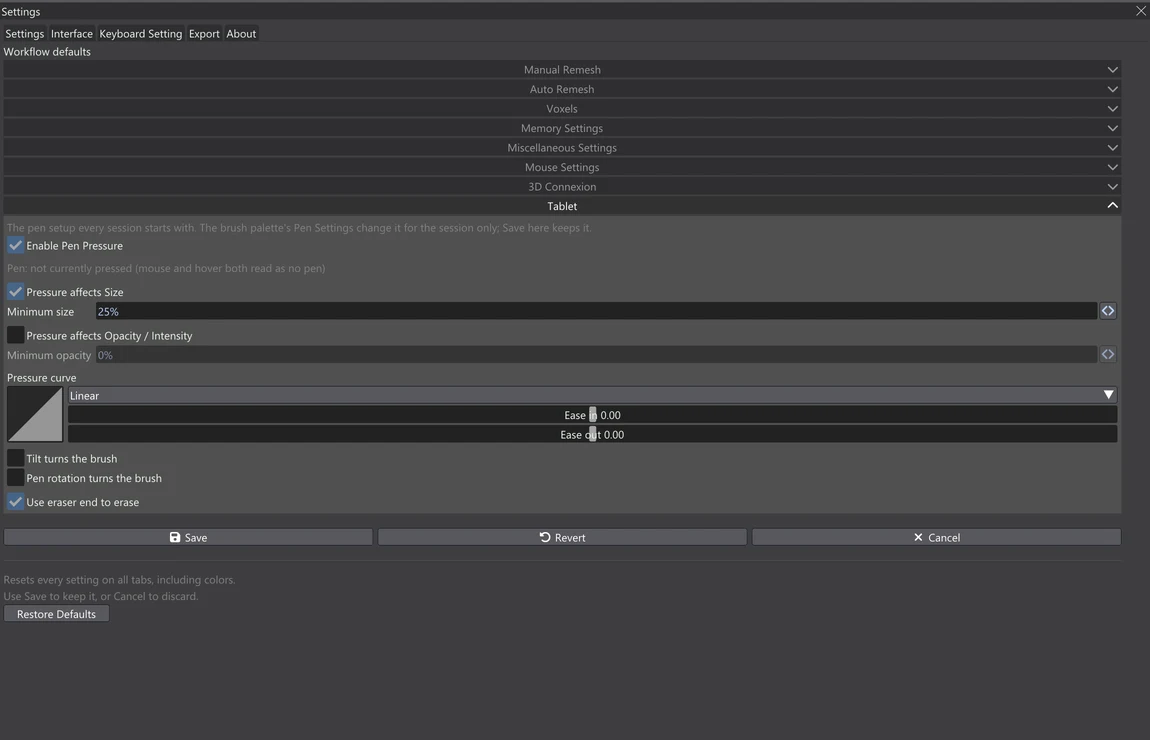
For what each control does, see the palettes' Pen Settings; the status line here reads the pen live as it does there.