Material Nodes
The Material category of the Node Editor palette holds nodes that pass a whole material along one wire. Instead of running separate links for colour, roughness, metallic, normal and the rest, you build a material once, then mix, layer or adjust it as a single value — the way you would stack smart materials in a layer-based painter.
What a material bundle is
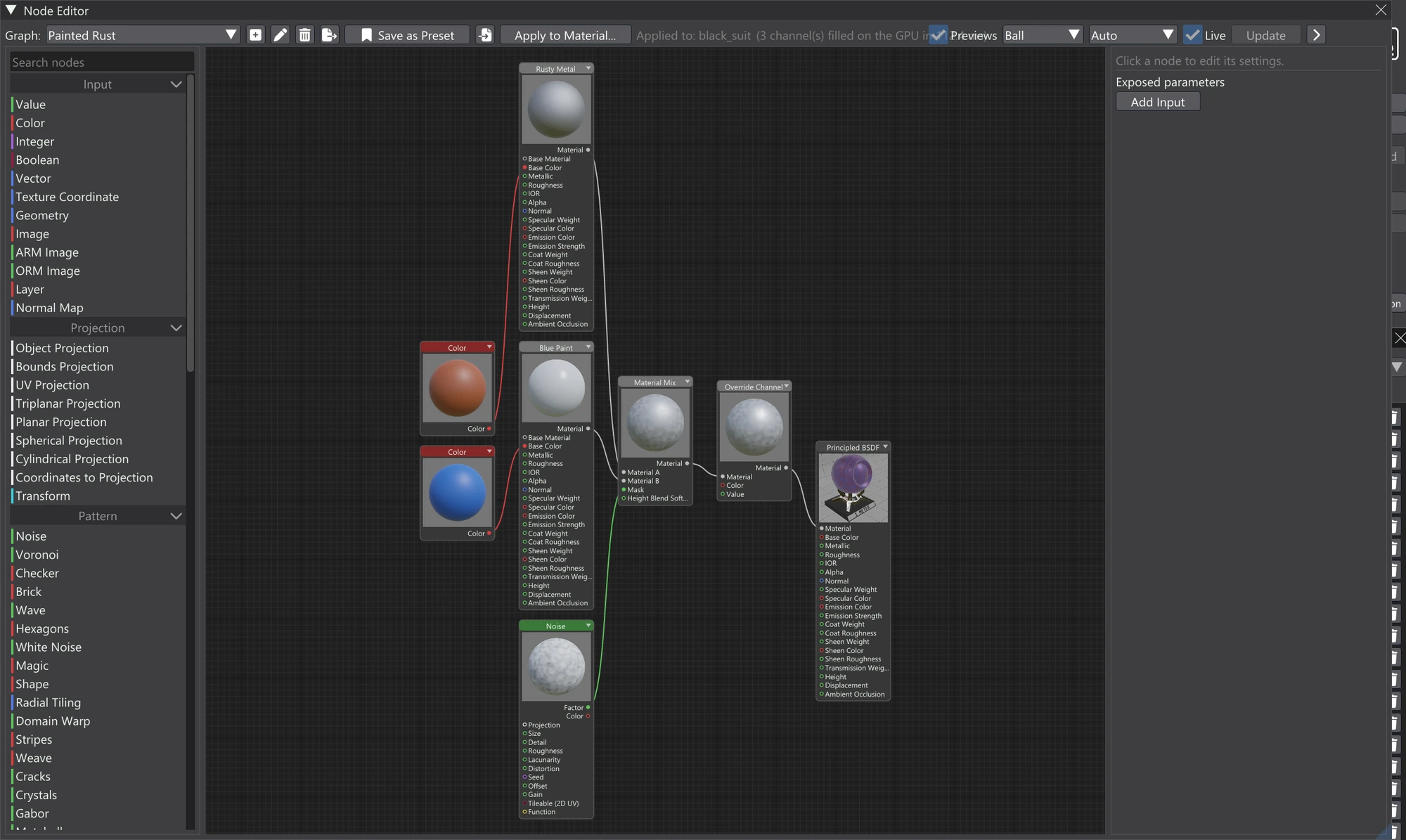
A Material socket carries a bundle: all of a material's Principled channels travelling together on one link. The channels are the same ones the output node has — Base Color, Metallic, Roughness, IOR, Alpha, Normal, Specular Weight, Specular Color, Emission Color, Emission Strength, Coat Weight, Coat Roughness, Sheen Weight, Sheen Color, Sheen Roughness, Transmission Weight, Height, Displacement and Ambient Occlusion.
A bundle only carries the channels that are actually set: linked, or given a value other than the default. A material that sets just colour and roughness drives just those two channels and leaves the others alone. Where a channel is missing from a bundle and something needs it — one side of a mix, say — the Principled default is used.
The material nodes
| Node | What it does | Main inputs |
|---|---|---|
| Principled Material | Builds a bundle from the Principled channels. Its Material output is the bundle. | Base Material, then every channel from Base Color to Ambient Occlusion |
| Material Mix | Blends two bundles, channel by channel, into one. | Material A, Material B, Mask, Height Blend Softness; Mode setting |
| Material Layer Stack | A base with up to four materials laid over it, each by its own mask — a chain of Material Mixes in one node. | Base, Layer 1–Layer 4, Mask 1–Mask 4, Height Blend Softness; Mode setting |
| Extract Channel | Reads one channel out of a bundle as an ordinary value. | Material; Channel setting. Outputs Color and Value |
| Override Channel | Replaces one channel of a bundle, passing the rest through. | Material, Color, Value; Channel setting |
| Material Input | Another graph of this project, as one bundle. | Graph setting (no inputs) |
| Principled BSDF (output) | The graph's output node. Its first input, Material, takes a bundle. | Material, then every channel |
Building a material
Add a Principled Material node and set or link the channels you care about — a colour and a roughness, a normal map, a height pattern. Leave the rest at their defaults; they stay out of the bundle. Wire its Material output into the Material input at the top of the Principled BSDF output node.
The output's Material input supplies every channel that is not linked on the output directly. So you can feed a whole material in and still link, say, a separate Normal straight into the output's own Normal socket; the direct link wins.
Base Material
The Principled Material node has a Base Material input of its own. Link a bundle there and the node starts from it: the channels you set on the node override the base's, and every other channel passes through unchanged. It is the quickest way to make a variant of an existing material — take a finished bundle and change only its colour.
Mixing two materials
Material Mix blends Material A and Material B across every channel either of them sets. Its Mode setting decides how:
| Mode | What it does |
|---|---|
| By Mask | A where Mask is 0, B where it is 1, blended in between. Link a pattern or a mesh-aware mask to it. |
| By Height | Whichever material stands higher at each point wins, using each one's Height channel. The Mask biases the contest towards A or B, and Height Blend Softness softens the seam between them. The winner's height becomes the mix's. |
By Height gives natural transitions — moss settling into the cracks between stones, paint surviving only on raised areas — because the boundary follows the surface detail rather than the mask alone.
Stacking layers
Material Layer Stack does what several Material Mixes in a row would. It starts from Base, then lays Layer 1 over it by Mask 1, Layer 2 over that by Mask 2, and so on up to four layers. A layer slot with nothing linked is skipped. The same Mode (By Mask or By Height) and Height Blend Softness apply to every layer.
Extracting and overriding a channel
Extract Channel pulls one channel out of a bundle so ordinary nodes can work on it. Pick the channel in its Channel setting; the Color output gives it as a colour and Value as a single number. Use it to drive a mask from a material's height, for example.
Override Channel does the reverse: it passes a bundle through with one channel replaced. Choose the channel in Channel; colour and vector channels take the Color input, number channels take Value. A common pattern is Extract, adjust with a Math or Color node, then Override back into the same bundle.
Using another graph as a material
Material Input brings in another material graph of the project as one bundle. Choose it in the node's Graph setting; the list never offers this graph, or one that reads this graph, so a loop cannot be made. The other graph is read, not copied: editing it changes this one too. That lets you keep a library of base materials — a metal, a paint, a dirt layer — in their own graphs and combine them with Material Mix or Material Layer Stack.
Material sockets also work on groups: a Group node's input or output can carry a whole bundle. See Groups & Exposed Parameters.