
Groups & Exposed Parameters
A group wraps several nodes into a single Group node with sockets of its own, so a busy graph reads as a few labelled blocks. The same socket list, used at the top level of a graph, becomes its Exposed parameters: values each Node Layer using the graph can set for itself. Everything on this page happens in the Node Editor.
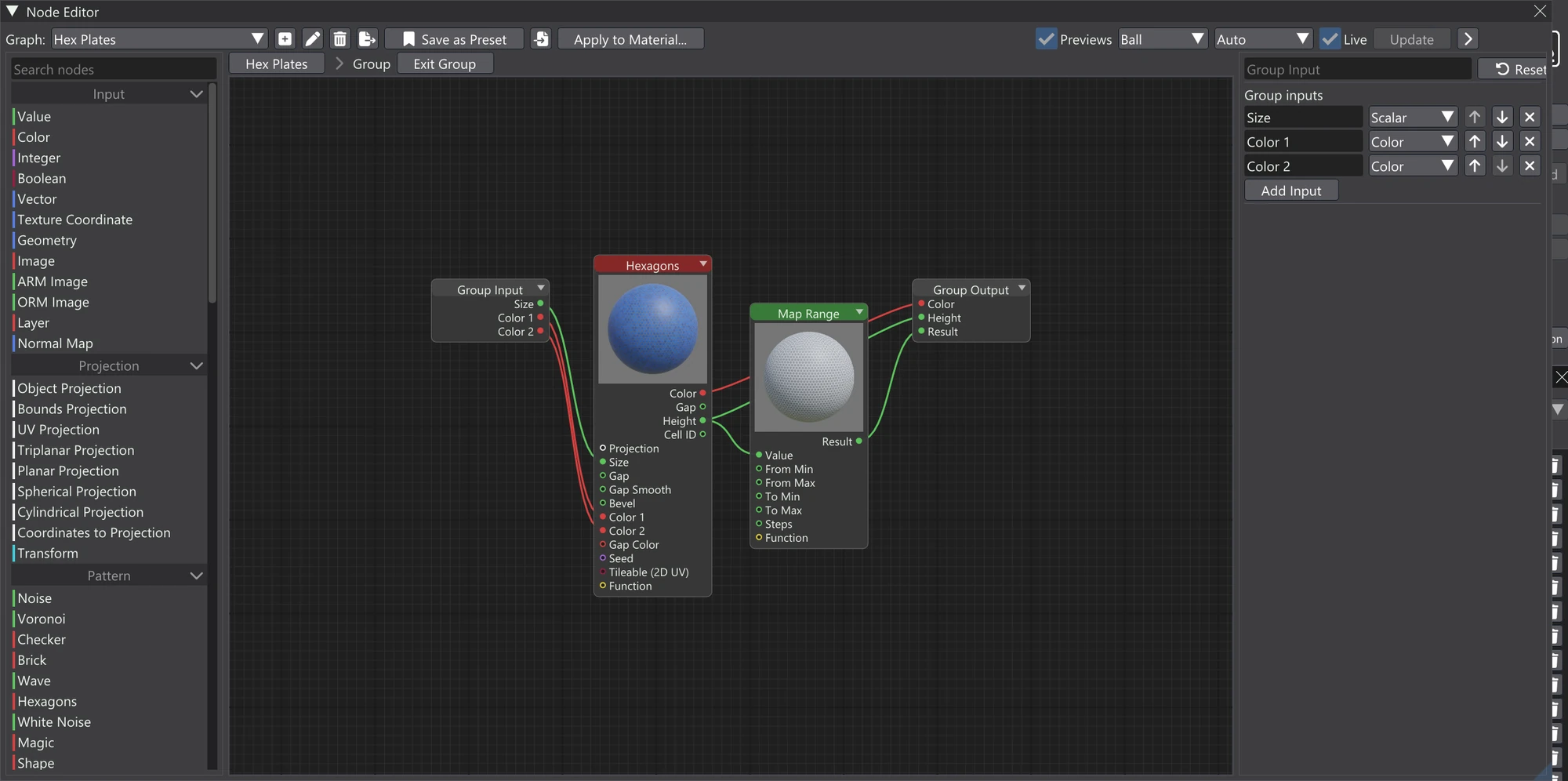
Making a group
Groups are always made from a selection — there is no empty Group node in the palette. Select the nodes you want to wrap, then press Ctrl+G or right-click one of them and choose Group. The selected nodes are replaced by one Group node, which comes back selected:
- Every link coming into the selection becomes one of the group's inputs (one per distinct source), named and typed after the socket it fed.
- Every link leaving the selection becomes one of its outputs (one per distinct source socket).
- The graph's output node is never taken into a group, even if it was selected.
To take a group apart again, select it and press Ctrl+Shift+G or choose Ungroup from its right-click menu. Its nodes are spliced back into the graph and come back selected.
Editing inside a group
Double-click a Group node, right-click it and choose Edit Group Contents, or press Edit Group Contents in its settings to open the group on the canvas. Inside you see its nodes plus two special nodes: Group Input, whose outputs are the values arriving on the Group node from outside, and Group Output, whose inputs are what the Group node passes on.
While you are inside a group, a breadcrumb above the canvas shows where you are: the graph's name, then each group you have opened. Click any level to jump back to it. Exit Group takes you one level out — back to the graph around this group — and so does Esc or Exit Group on the canvas's right-click menu. The group you left comes back selected, and each level remembers its own pan and zoom.
Groups can hold groups. Give a Group node a name of its own in the name field at the top of its settings; it is shown on the canvas and in the breadcrumb.
Group inputs and outputs
A group's sockets are edited from inside it. Double-click the Group Input node to edit the Group inputs list, or the Group Output node to edit the Group outputs list. Each row is one socket on the Group node:
| Control | What it does |
|---|---|
| Name field | The socket's name on the Group node. |
| Type dropdown | What the socket carries: Scalar, Color, Vector, Integer, Boolean, Function, Projection, Transform or Material. Links that cannot carry the new type are removed. |
| Up / down arrows | Move the socket one place up or down the list, which is its order on the Group node. |
| Remove (×) | Removes the socket, together with the links on it inside and outside the group. |
| Add Input / Add Output | A new socket on the Group node: an input, read inside from Group Input, or an output, fed inside into Group Output. New sockets start as Scalar. |
A Material socket lets a whole material bundle pass in or out of a group in one wire — see Material Nodes.
Exposed parameters
A graph itself can have inputs. At the top level of a graph, with no node open, the settings panel shows Exposed parameters below “Double-click a node to edit its settings.” The list works like Group inputs — name, type, reorder, remove — and each row also has a Value: the graph's own value for that parameter. Scalar, Integer, Boolean, Color and Vector parameters get a slider, checkbox, colour picker or fields; other types show “(link a node)”.
Add Input adds a new exposed parameter. Inside the graph you read it through a Group Input node (one is added for you with the first parameter, if the graph has none) and wire it to whatever it should control — a tint colour, a wear amount, a scale.
On a Node Layer
Exposed parameters are what make one graph reusable across materials. On the Layers window, right-click a Node Layer and choose Node Layer Settings... to open the Node Layer window. Under Exposed parameters it lists the graph's parameters, each starting at the graph's own value; change one and only that layer uses the new value. The reset button beside it goes back to the graph's own value. If the graph has none, the window says so and points you back to the Node Editor. See Node Layers.
Some of the sample presets already expose parameters — the painted concrete one exposes Paint Color and Wear — so they are a quick way to see the idea in action.
Saving a group as a preset
Right-click a single Group node and choose Save Group as Preset.... The Node Presets save prompt opens, titled Save group as preset, with the group's name filled in; choose a Folder and optionally add a description and tags, then Save. Saving over an existing preset asks first.
Dropping a preset from the Node Presets window onto the canvas inserts it as a Group node — a saved group as it was, a whole material graph as a group with one Material output. Ungroup gives you its nodes. See Node Presets.