
Color Groups & Grow/Shrink/Loop Select
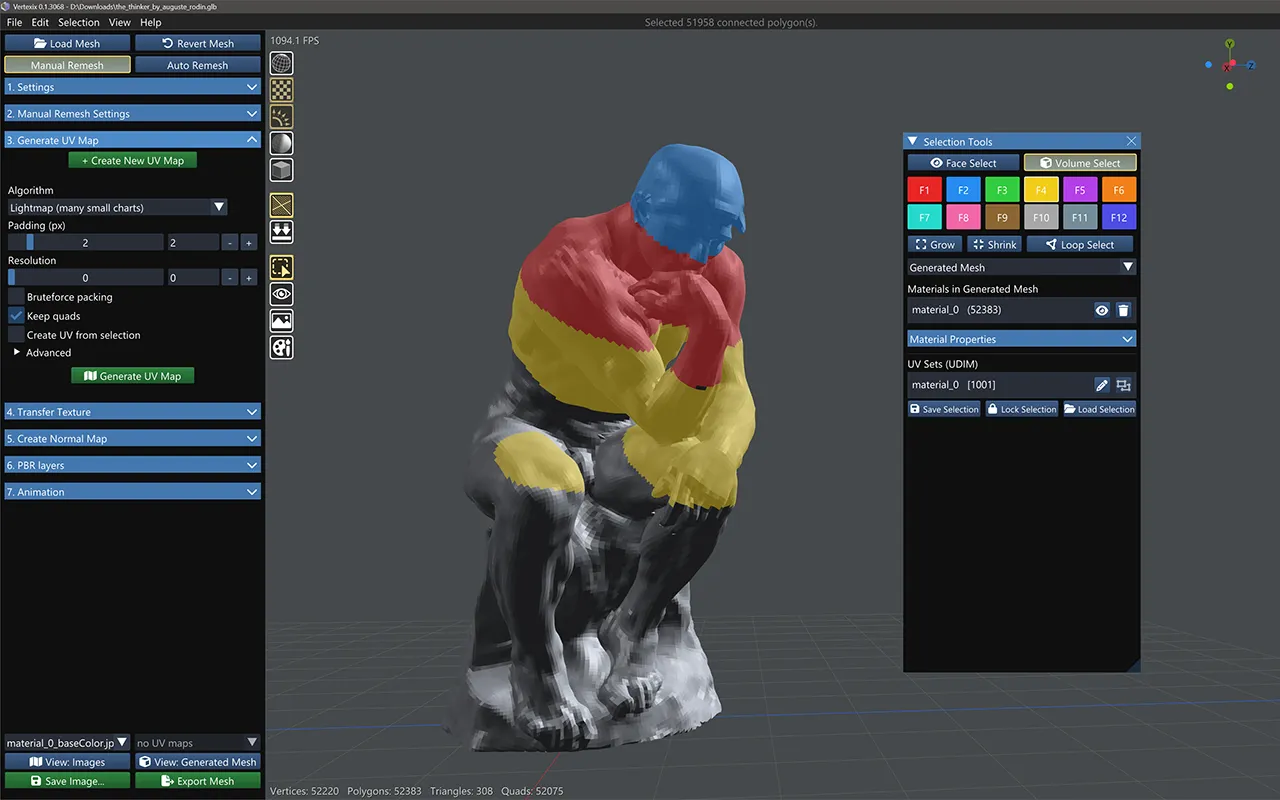
Color groups (F1–F12)
Twelve color swatches, only shown once a created topology exists — the Loaded Mesh's own selection is binary, so there are no color groups to pick between there. Click a swatch (or press its F-key) to make that color the active selection group; the active swatch gets a white border.
*Note: Color selections will be used in future versions of the software for isolating UV island creation.
Grow, Shrink & Loop Select
Available as soon as any mesh is loaded, and act on whichever mesh is actually on screen — the created topology when it's showing, the loaded mesh otherwise.
- Grow — expands the current selection by one ring of adjacent faces. Disabled with nothing selected.
- Shrink — contracts the selection by peeling off its boundary ring. Disabled with nothing selected.
- Loop Select — a one-shot action, not a toggle: select two adjacent faces by hand first (their shared edge sets the loop's direction), then press this to walk the rest of the ring. On the loaded mesh this follows quad edge flow and stops at triangles or n-gons.
Default selection shortcuts
Every row below except the color-group keys is redefinable from Settings > Keyboard Setting — see Keyboard Shortcuts for the full, app-wide list.
| Action | Default key |
|---|---|
| Loop Select | L |
| Grow Selection | Shift+] |
| Shrink Selection | Shift+[ |
| Lock Selection | K |
| Restore Locked Selection | Ctrl+Z |
| Save Selection | C |
| Load Selection | Shift+C |
| Delete Selected Polygons | Delete |
| Hide Selected Polygons | - |
| Hide Unselected Polygons | = |
| Unhide All Polygons | \ |
| Flip Normals | F |
| Selection colour group | F1 – F12 |
The F1–F12 color-group keys are fixed, not part of the rebindable table above — see Color groups at the top of this page.