
Lasso Scope: Face vs. Volume Select
Dragging a lasso
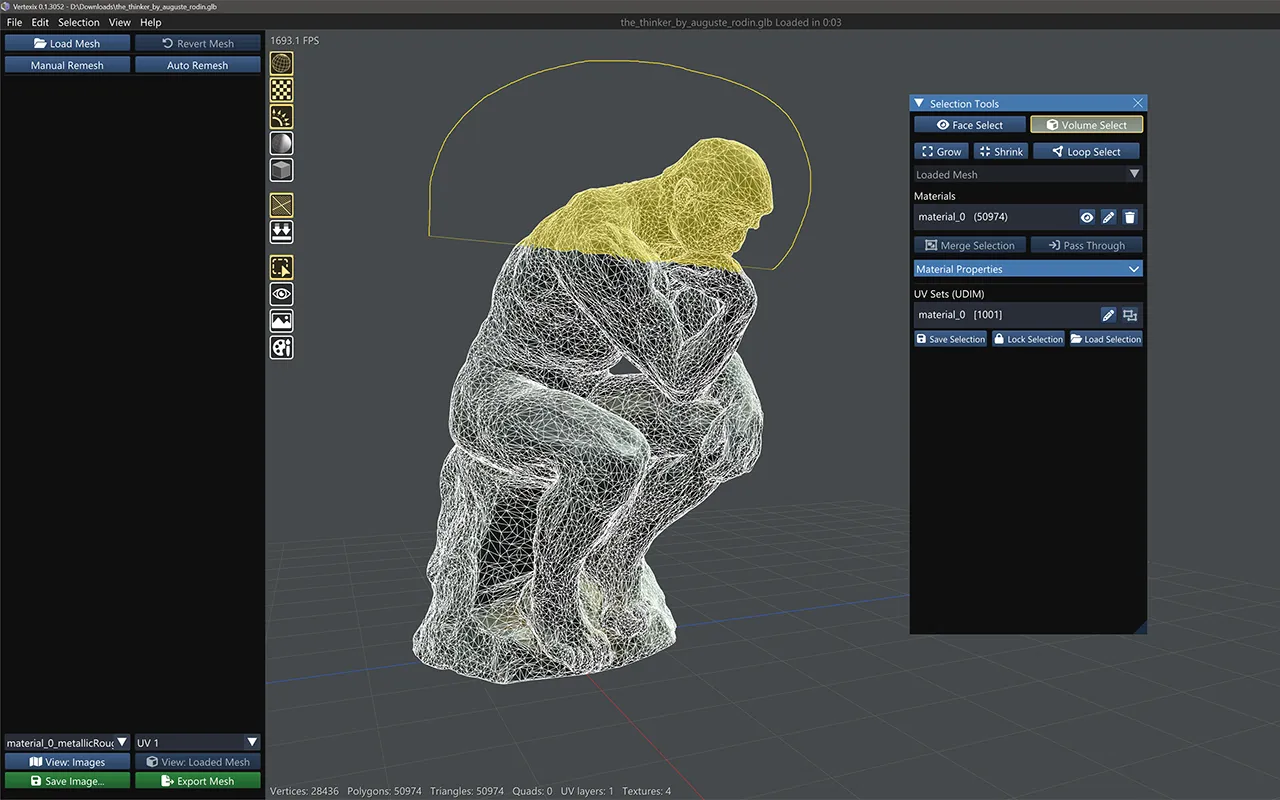
Hold the right mouse button and drag to draw a lasso around polygons, on either the Loaded or Generated mesh. Whether letting go selects or deselects depends on what's already selected — and the outline's color tells you which, before you even release:
- Yellow lasso — nothing is selected yet, so the lasso creates the initial selection. (Yellow is just this "select" color's default; it's one of the swatches under Settings > Interface > Viewport colors.)
- Red lasso — a selection already exists, so the lasso deselects whatever polygons it covers instead of adding to them.
- Shift+right-click — forces the lasso back to yellow (select) even with an existing selection, so you can keep growing it instead of trimming it.
Face Select vs. Volume Select
Two toggle buttons at the top of the window, applying to every lasso drawn this way:
- Face Select — the lasso only affects polygons the camera can actually see. Back faces and anything occluded are left alone.
- Volume Select — the lasso cuts straight through the model: every polygon whose centroid falls inside it is affected at any depth, including back faces and hidden ones. Lasso a head and the whole head gets selected.
This setting sits above the color swatches because it governs every lasso, not just Generated-Mesh selection.