
The Active Ball
The Active Ball section holds the active ball's own settings and the link from it to its parent ball. The active ball is the one you clicked last; its ring is lit in every view.
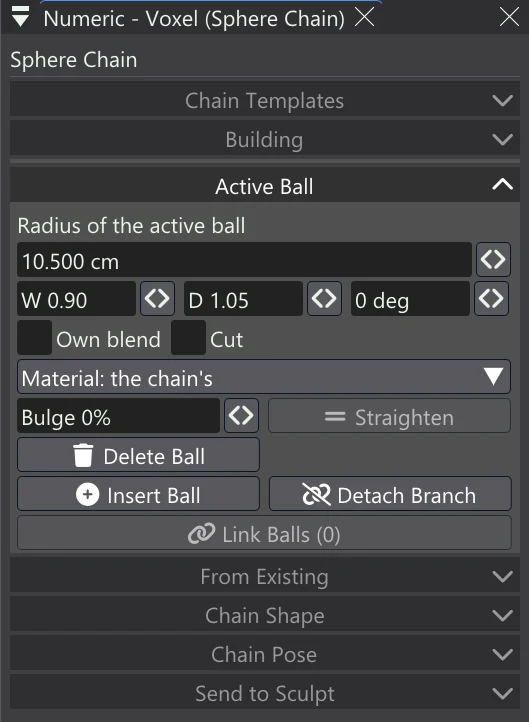
| Control | What it does |
|---|---|
| Radius of the active ball | Its size, in the Voxel tab's unit. With no chain selected it is the size of the first ball of the next chain. [, ] and Shift+drag on a ball size it too. |
| W / D | Width across its link and depth front to back, each times its radius: oval balls for a flat torso, a hand or a wing. |
| Roll (degrees) | Turns the oval about its link. |
| Own blend | Gives the ball a blend of its own — how softly it fuses with its neighbours — instead of the chain's (Chain Shape). A slider for it appears below. |
| Cut | The ball carves the chain instead of adding to it: eye sockets, a mouth, a hole. It is drawn red, and the Quad Skin leaves it out. |
| Material | The ball's voxel material (make materials in Edit Node), or the chain's. The ball, its link and its beads take its colour in the views, and the mesh sent to Sculpt carries it as vertex paint. |
| Bulge | Swells the middle of the ball's link to its parent (a muscle), or below 0 pinches it (a wrist). |
| Straighten | Makes a curved link straight again. |
| Delete Ball | Removes the active ball (Delete). Its children hang from its parent instead. |
| Insert Ball | Puts a new ball halfway along the active ball's link to its parent. |
| Detach Branch | The active ball and everything hanging from it become a chain of their own, in the same place. |
| Link Balls | Links the active ball to the other selected balls. See Selecting & Linking Balls. |
Curved links
In Place mode a small diamond sits at the middle of the active ball's link. Drag it to bend the link into an arc; the arc keeps its shape as you move either ball. Straighten makes it straight again, and Bulge swells or pinches it. A curved link stays curved in the solid, the Quad Skin and every link style.
Bead control points
In Place mode every link shows a small dot at the centre of each bead along it, following the curve. Click a dot and a real ball is put there, exactly where that bead was and at its size; a click anywhere else on a link puts the ball at that spot. Either way the new ball sits on the arc, the arc keeps its shape on both sides of it, and the new ball becomes the active one — the quickest way to branch off the middle of a limb.
Editing with the tool off
While a chain is selected, its balls can be picked and dragged in all four views even when the Sphere Chain tool is off: hover over a ball and its ring lights; click to make it the active ball; drag to move it; Shift+drag to size it. A click on empty space still selects or clears nodes as usual.