Building a Chain
The Building section sets how clicks and drags make balls, what the views show while you work, and how links are drawn.
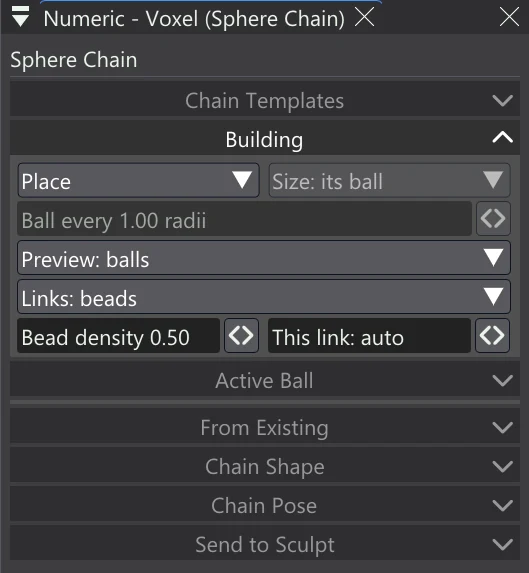
| Control | What it does |
|---|---|
| Place / Draw / Spline / Pose | The mode: what a click or a drag in a view does (below). Place is the default. |
| Size: its ball / Size: pen pressure / Size: stroke speed | Draw mode: what sizes the balls laid along a stroke — the ball it grows from, the pen's pressure (a mouse presses fully), or how fast you draw (slower is thicker). |
| Ball every | Draw and Spline: how far apart the laid balls are, in their own radii. Smaller makes more balls. |
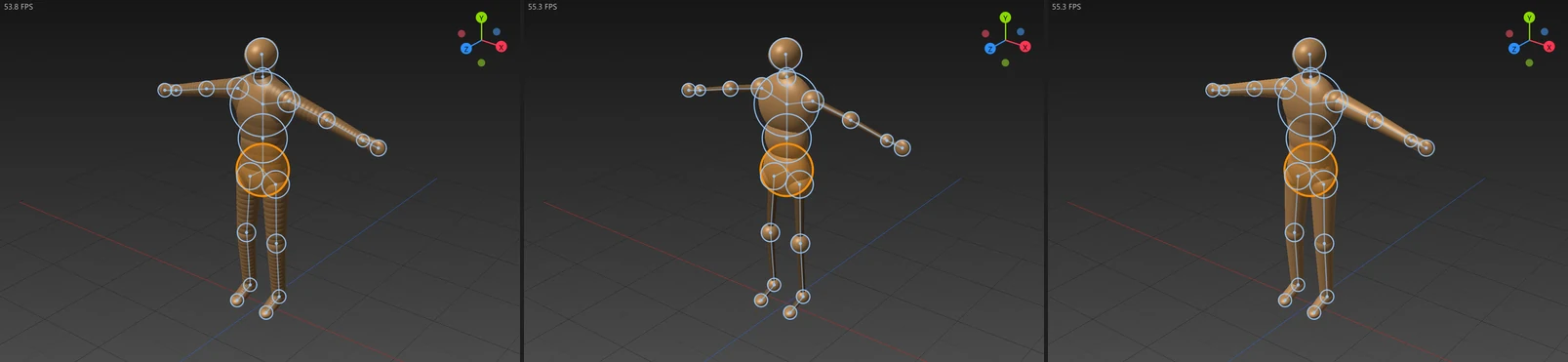
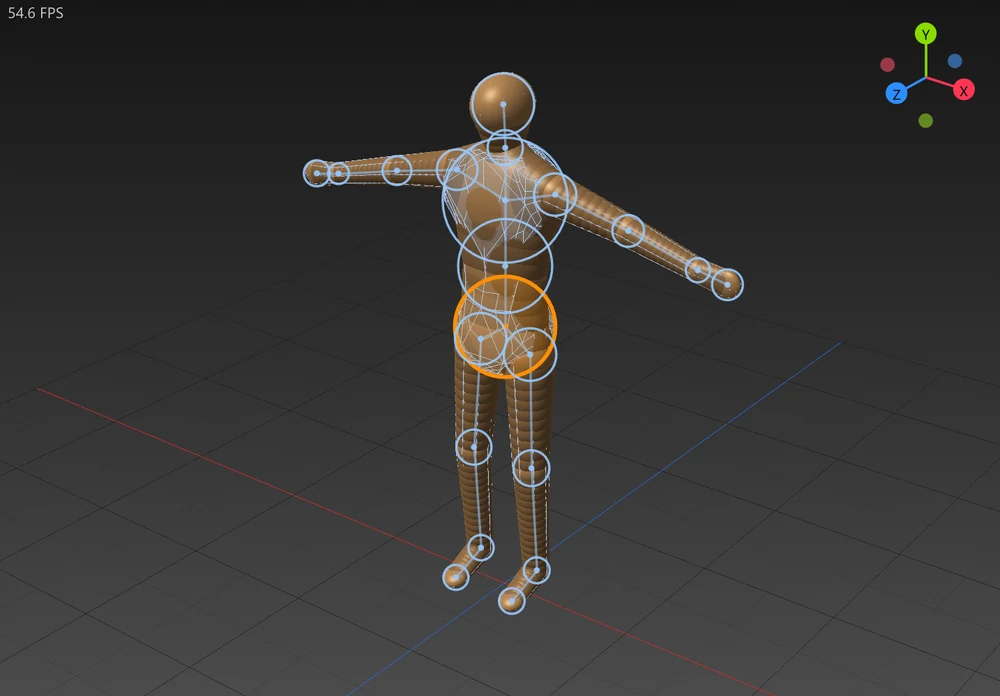
| Preview | Preview: balls shows the chain as you build it. Preview: cage also shows, see-through, the Quad Skin the chain would make, with its edges. Preview: X-ray shows the parts hidden inside or behind other shapes, faintly through them. |
| Links | How the links are drawn: Links: beads (a string of small balls, each sized and turned between the two balls), Links: cone (a slim cone) or Links: pill (a smooth tube). Only the look changes; the solid is the same. |
| Bead density | Beads: how many beads an automatic link gets. 1 is about one every third of a radius; the default 0.5 is half that. |
| This link | Beads: the active ball's link to its parent, its own number of beads; auto follows Bead density. Saved with the chain. |
Place
A click on empty space drops a ball linked to the active ball, the same size as it; the first click makes the chain, at the size set in Active Ball. Keep the button down and drag to put the new ball where you want it. A click on a ball makes it the active ball, so the next ball branches from it, and a click on a link puts a ball in it (see Bead control points).
Draw
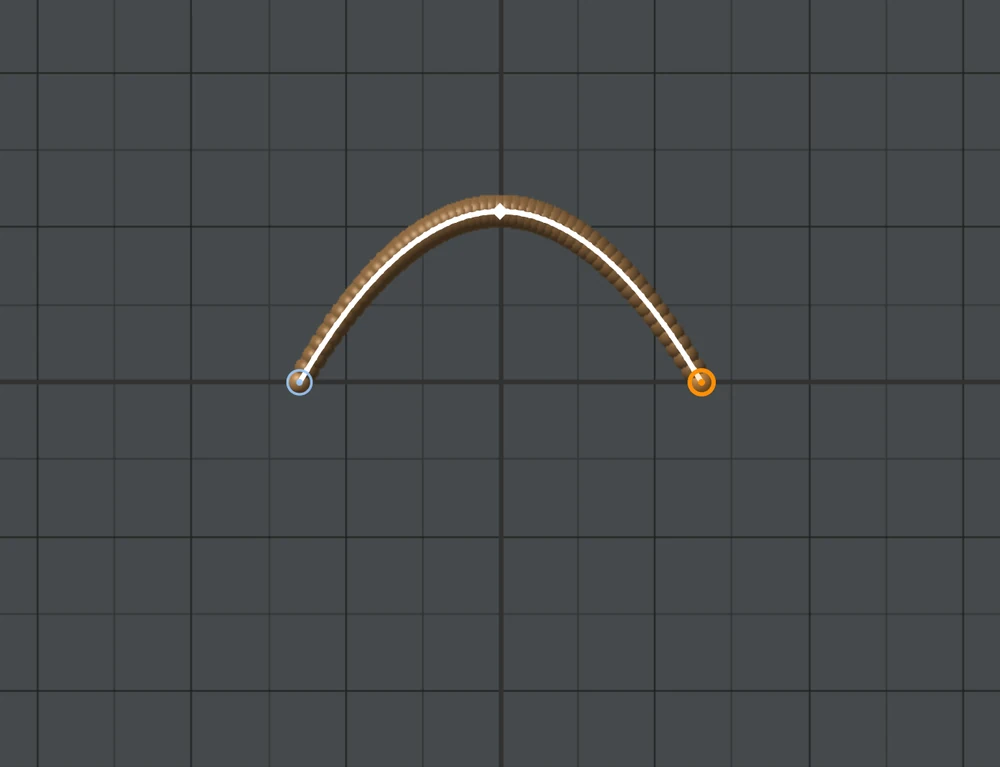
Drag to lay a run of balls along the stroke. It grows from the ball you start on, or else from the chain's ball nearest where you start; with no chain held (after Esc, say), the stroke makes a new chain. Shift+drag on a ball still sizes it.
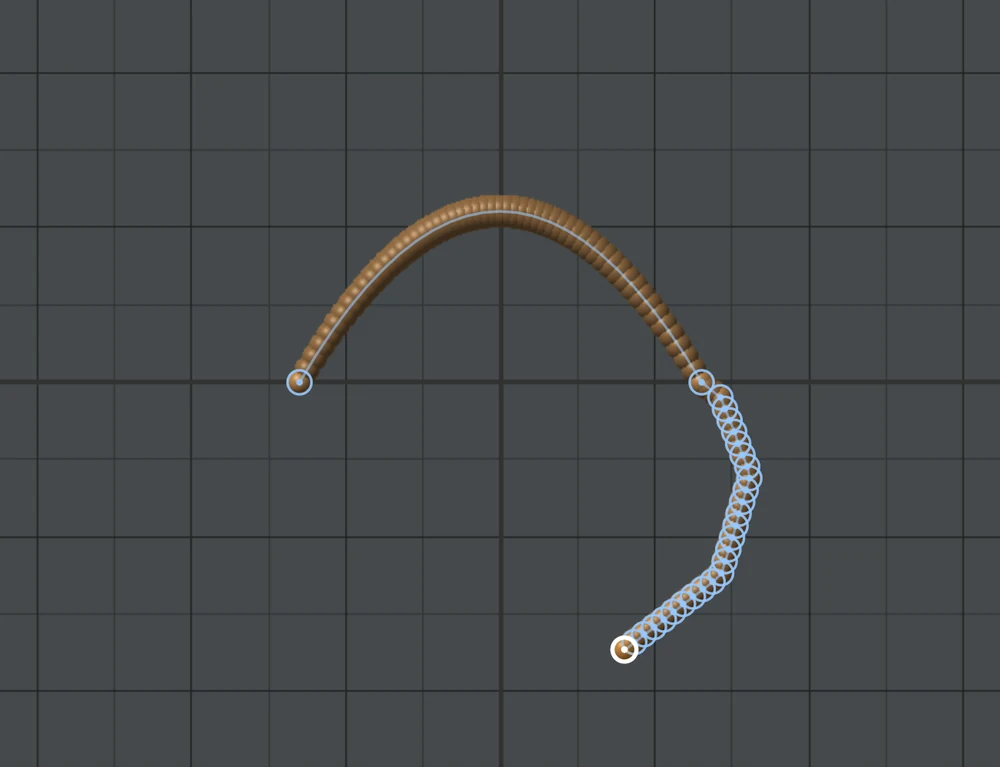
Spline
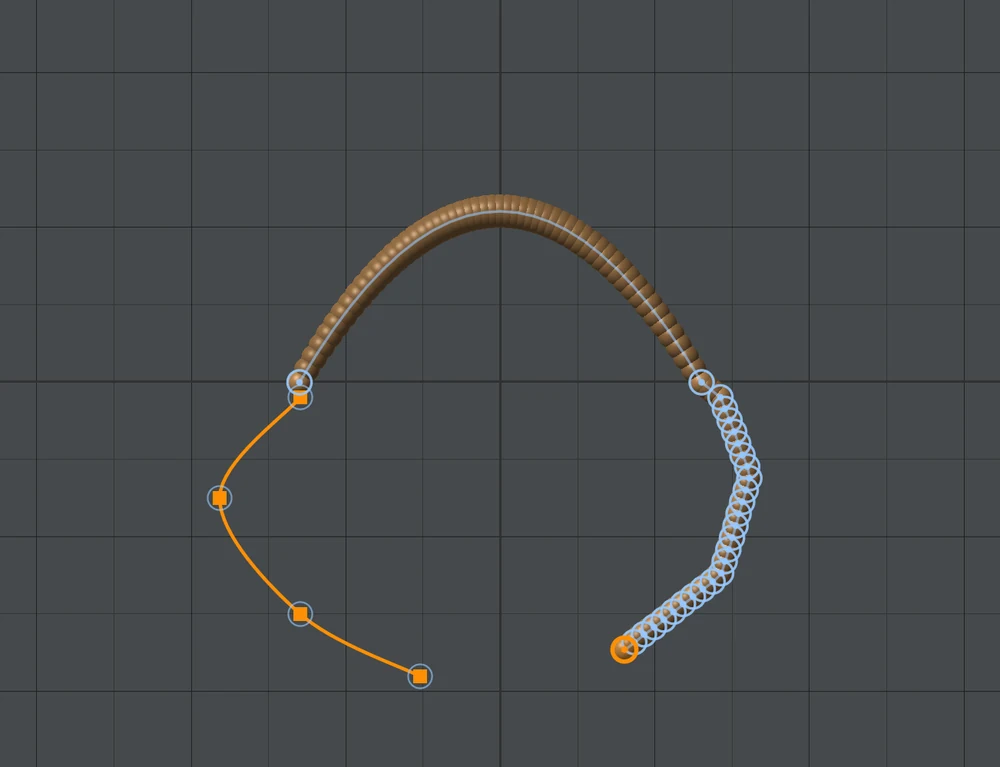
Click to lay control points; a smooth curve runs through them, each point showing its ball's size as a ring. The first point on a ball starts the curve at that ball, as a branch.
- Drag a control point to move it.
- [ and ] size the last point; Backspace or Delete removes it.
- Return lays balls along the curve and puts the tool away; a right click lays them and starts a new chain; Esc throws the curve away.
Pose
Drags pose the chain instead of building it: see Posing & Rigging.
Starting a new chain
Esc or a right click lets the current chain go, leaves nothing selected, and keeps the tool on. Then a click on empty space starts a new chain — and a click on a ball, or a link, of any chain picks that chain up again, so the next ball branches from there. In Spline mode, Esc first throws away a curve you are still clicking out.
Preview and link styles