
Menu Bar & File Operations
The menu bar sits above the viewport and holds six menus: File, Edit, Selection, View, Window and Help. Where a menu item has a rebindable shortcut, the menu shows your current key for it, not the shipped default.
File
| Item | What it does |
|---|---|
| New | Clears everything back to a blank session (Ctrl+N by default). If a model is loaded, a confirmation asks first; with nothing loaded it just happens. |
| Load... | Opens a file browser to import a model (Ctrl+O). If a model is already loaded, a confirmation warns that the current model and everything made from it will be discarded, and offers Reset all settings to default. |
| Load Last... | Loads the newest entry of the Recent list again (Ctrl+Shift+O), with the same warning as Load... when a model is loaded. Hover it to see which file that is. |
| Recent | Models you loaded recently, by file name. Hover an entry to see its full path. |
| Recent Voxel Scenes | Your recent Voxel scenes, kept as a separate list. Picking one switches the sidebar to Voxel mode and loads it — see Saving & Loading Scenes. |
| Save Project... / Open Project... | Write and read a .vxp project: the loaded and generated meshes, UV spaces and bakes, rig, strokes and a set of settings, so you can pick up where you left off. Save Project is available once a model is loaded. See Projects & File Types. |
| Recent Projects | The projects you saved or opened recently, newest first; hover an entry to see its full path. Alt+Shift+O (Load Last Project in the shortcut list) loads the newest one at once, with no list. |
| Export Node Graph... | Saves the graph open in the Node Editor as a .vxn file. Disabled when no graph is open. |
| Import Node Graph... | Reads a .vxn file in as a new graph. See Node Editor. |
| Export Rigged glTF (Generated)... Ultra | Transfers the loaded model's bones and skin weights onto the generated mesh and exports it as a skinned glTF. Needs a generated mesh. |
| Export Rigged glTF (Loaded)... Ultra | Writes the loaded model out as a skinned glTF with its own skeleton and weights — no retopology or UV map needed. Only available when the model arrived with a skeleton and skin weights. |
| Exit | Closes Vertexix (Alt+F4). |
New, Load... and the rigged exports are disabled while a background job (loading, remeshing, unwrapping, baking) is running. See Exporting Rigged glTF for the rigged exports.
Load Mesh, Revert Mesh and Export Mesh
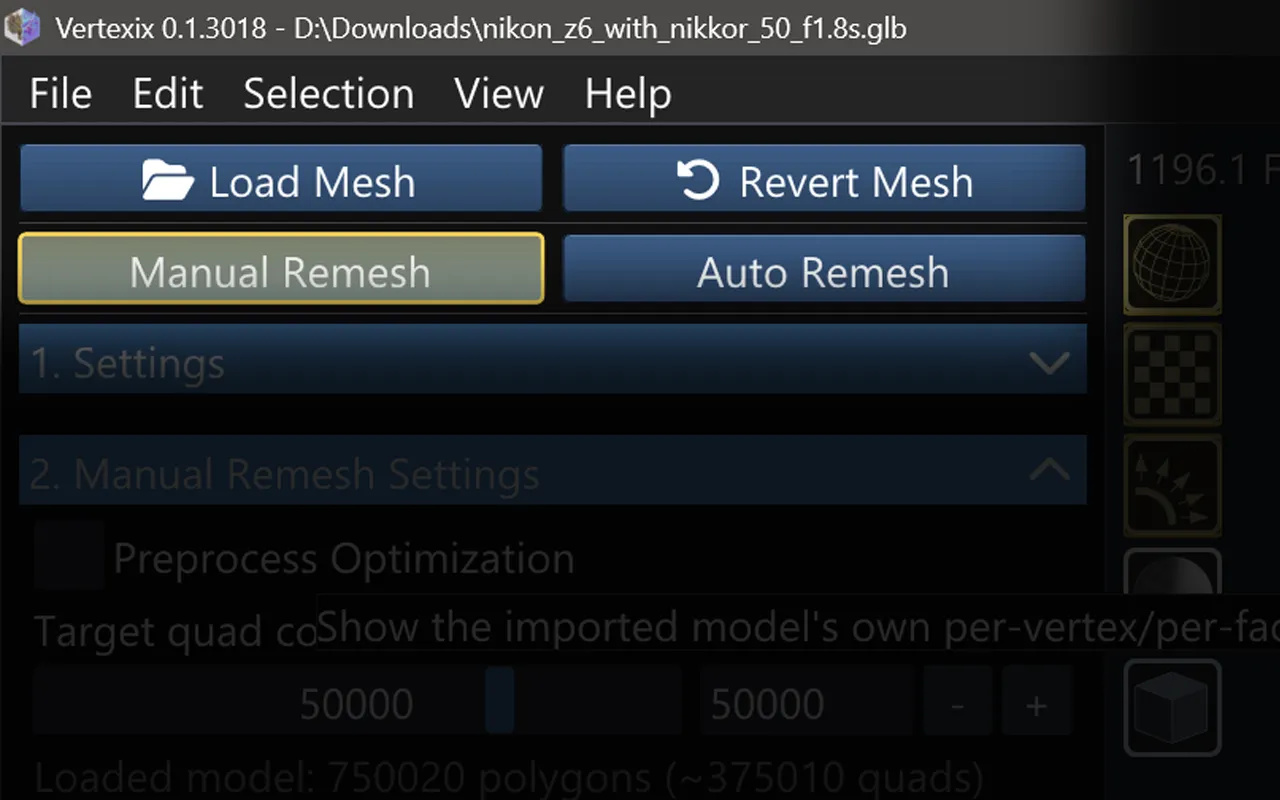
The sidebar's Retopology tab has its own Load Mesh button; Revert Mesh is in the Edit menu, under Redo (Ctrl+R). Revert Mesh — enabled once a topology has been created — clears the created topology, UV map, baked textures, selections and strokes, and reloads the file from disk, keeping your workflow choice and settings (Ctrl+R by default). Export Mesh is not a menu item: it is a button in the sidebar footer (Ctrl+E) — see Exporting.
Edit
| Item | What it does |
|---|---|
| Undo / Redo | Ctrl+Z / Ctrl+Shift+Z. They act on whatever the current sidebar mode owns: paint strokes in Paint, sculpt strokes in Sculpt, and selection steps in Retopology. In the Manual Remesh workflow, Undo can also take back the last Create New Topology, after a confirmation, since that can discard a UV map, bakes or paint made since. |
| Revert Mesh | Ctrl+R. Enabled once a topology has been created: clears it and everything made from it and reloads the file. See below. |
| Set Mesh Size... | Resizes the loaded mesh. Disabled with no mesh, or once a topology has been created. See Set Mesh Size. |
| General Settings, Interface Settings, Keyboard Settings, Export Settings | Open the matching Settings tab (Alt+F9, Alt+F10, Alt+F11, Alt+F12; these keys are fixed). See Settings. |
Selection
The same actions as the selection keys, available once a model is loaded: Grow Selection, Shrink Selection, Loop Select, Hide Selected, Hide Unselected, Unhide All, Lock Selection, Restore Locked Selection (enabled once a selection is locked), and Save Selection to Disk... / Load Selection from Disk... (Vertexix and Ultra). See Selection Tools and Save / Lock / Load Selection.
View
| Item | What it does |
|---|---|
| Reset View | Puts every view's camera back where it starts: the starting angle (front, side and top views back square to their axis) with the whole scene framed. The clipping distance is measured again from the scene as it is now, so a model that grew or shrank since the camera was placed is no longer cut off. No key by default; Settings > Keyboard Setting can give it one, and a mouse or 3D mouse button can run it. |
| View Bones | Shows the model's skeleton as an x-ray overlay. Disabled when the model has no armature. |
| View Bone weights | Recolors the mesh by which bones influence each vertex, blended by weight. |
| Animation... | Plays the skeletal animation embedded in the loaded model. See Animation. |
| VSync | Syncs rendering to the monitor's refresh rate: on means no tearing and a capped frame rate; off is uncapped, useful for judging performance (Shift+V). |
| Anti-aliasing | Smooths jagged polygon edges in both OpenGL View and PBR View. Takes effect immediately. |
| Open PBR Shading Ultra | Shades every material with OpenPBR instead of the default shader — the same toggle as in PBR Settings. Needs PBR Preview on (P). |
| View Gradient Background / View Static Background | Open the viewport background settings in Settings > Interface. See Viewport Background & Horizon Presets. |
| View World Normals | Colors each surface by its world-space normal direction. Works in OpenGL View and PBR Preview. |
| View Depth Map | Greyscale by distance from the camera (white near, black far). Turning one of these two on turns the other off. |
| Open Console | Opens a console window. |
| Create Log | Writes a step-by-step log of what the app is doing to a logs folder next to the program. It slows things down, but is what a bug report or a hang/crash diagnosis needs. |
| Open Log Folder | Opens that logs folder. |
Window
Lists every standalone window with a checkmark when it is open; clicking an entry opens or closes it. It also holds Settings..., and Save Dock Layout..., Load Dock Layout and Update Dock Layout... for named panel arrangements. See Windows & Dock Layouts for the full list.
Help
| Item | What it does |
|---|---|
| Online Manual | Opens this manual in your default browser. |
| Report Issue | Opens the GitHub issue tracker in your default browser. |
| Keyboard Shortcuts... | Opens the shortcuts reference (?). See Keyboard Shortcuts. |
| About | Opens the About tab (Alt+F1). |